AIO-5 EVO

User Manual

Product Overview

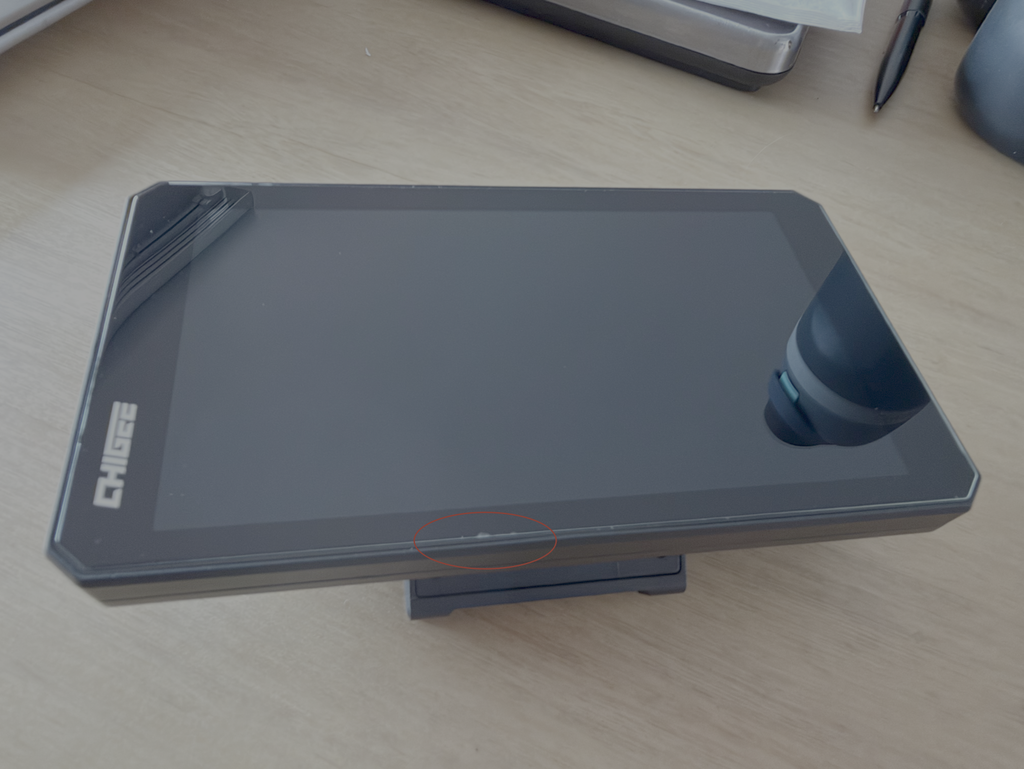
AIO-5 EVO is a smart motorcycle display built for everyday riding. Dual 1080p cameras capture clear footage on every trip, while the 5-inch high-brightness HD screen stays easy to read in sun and rain. It supports wireless mirroring for navigation and apps, plus dual Bluetooth audio for flexible helmet headset pairing. With an IP69K dustproof and waterproof design, AIO-5 EVO is ready for demanding conditions—delivering a clean, efficient riding experience with the essentials that matter.

Package List

Components Details

Home Button

Switch Button

Record Button

Lock Button

Record Indicator Light

Light Sensor

Speaker

Connecting Cable

Vibration Damper

17mm Ball Head

Microphone

Micro SD Slot

Type-C Port

Installation Guide

SD Card Installation

Please use a microSD card rated U3 to ensure stable video recording. If you use a slower card, videos may stutter or fail to save. (microSD card sold separately.)

After inserting the microSD card, press the waterproof rubber plug in until it is fully flush with the housing. If the plug is not flush, the device’s waterproof protection may be reduced.

Video Storage

AIO-5 EVO saves all recorded videos directly to the microSD card.


Note. Videos marked as Locked (for example, after an impact) cannot be overwritten by loop recording.
To free up space, please delete locked files as prompted on the device, or format the microSD card.

microSD Card Formatting

Regularly format the microSD card to keep it working properly. Formatting will erase all media files on the card.

Steps: 

1. Go to Settings.

2. Select Storage → Format.

Device Mounting

Select the appropriate reducer ring size based on the handlebar diameter. For 32mm handlebars, use a PVC gasket to prevent scratches.

M5X20 Phillips Pan Head Screws

T25 Daisy-Hole Stainless Steel Wrench

M5X10 Phillips Round Head Screws

M5X18 Phillips Round Head Screws

M3X8 Phillips Pan Head Countersunk Screws

T10 Phillips Slot Head Stainless Steel Wrench

M3X16 Phillips Pan HeadCountersunk Screws

Φ22-32 Round Tube

Reducer Ring 28mm

Reducer Ring 25mm

Reducer Ring 22mm

Product Wiring Diagram

Connect the GPS module

Identify the front and rear cameras by checking the labels.

资源 1400

Front Camera

资源 2400

Rear Camera

Align the connector with the mark before plugging it in. Then, insert and tighten the nut.

Fuse box (3A)

Connect the red wire to the motorcycle battery's positive terminal.

Connect the black wire to the motorcycle battery's negative terminal.

Connect the yellow wire to the motorcycle's ACC terminal.

Install CHIGEE Display (Step-by-Step Video)

Note: Do not fasten part ③ to the steering shaft or any moving parts. Repeated bending during riding may damage the wiring harness.

GPS Installation Location & Requirements

Recommended mounting (inside the fairing):
Mount the GPS antenna inside the motorcycle’s plastic body panel using the 3M adhesive. Stick it so that the side marked “TOP” faces upward (toward the sky).

Requirements / Notes

1. Do not mount under carbon fiber parts.

2. Do not place it where it is blocked by metal.

3. Keep it as far as possible from the camera, camera cable, and the main unit.

4. The “TOP” side must face the sky.

5. If GPS cannot receive a signal, change the mounting location and try again.

Camera Installation

Paste the camera in a suitable position and rotate the top logo to face directly upwards.

(Note: Do not install it in areas with strong vibrations, as this may cause image shaking)

Fixed Clamp — Secures the bracket in place.

Alignment Mark — Helps you confirm the correct installation direction.

Rotating Camera (Left/Right) — Rotate the camera and keep the alignment mark facing upward.

M4 Hex Nut

M4×20 Wing Screw (Thumb Screw) — Adjusts the camera’s tilt angle.

3M VHB Double-Sided Tape

Installation Prompts

1. Loosen the screw to rotate the camera 360°. Keep the camera mark facing straight up.


2. Use 3M VHB double-sided adhesive to mount the camera in the ideal position. Clean the surface thoroughly before applying. Press firmly for at least 10 seconds, then let it sit for 30 minutes to ensure strong adhesion.

BSD Camera Installation Location

1. Recommended height: Mount the rear camera 60–90 cm above the ground.

2. Go to BSD Settings and enable the Calibration Line. Adjust the camera tilt so the red line lands about 8 meters behind the motorcycle.

bSD disclaimer

The BSD (Blind Spot Detection) system is an assist feature only. Always stay alert and do not rely on BSD alone. The system may trigger false alerts or miss detections.

Always check your surroundings and follow safe riding practices, including (but not limited to):

  • Check mirrors
  • Look over your shoulder to confirm blind spots
  • Use turn signals
  • Adjust speed appropriately

Device Activation Guide

Turn on the device to enter the activation page, then tap【Connect Now】

Connect to a WiFi network

Waiting for activation

Activation Successful

Physical Buttons

Home Button: Press to return to the Home screen from any page.

Switch Button: Press to toggle between the Mirroring screen and the CHIGEE Dashboard.

Record Button: Press to open the dashcam preview screen.

Lock Button: Short press: Turn the screen off; Press and hold 2 seconds. Lock the touchscreen (recommended in rain/snow). Press and hold 6 seconds: Force restart.

User Interface Overview

Homepage

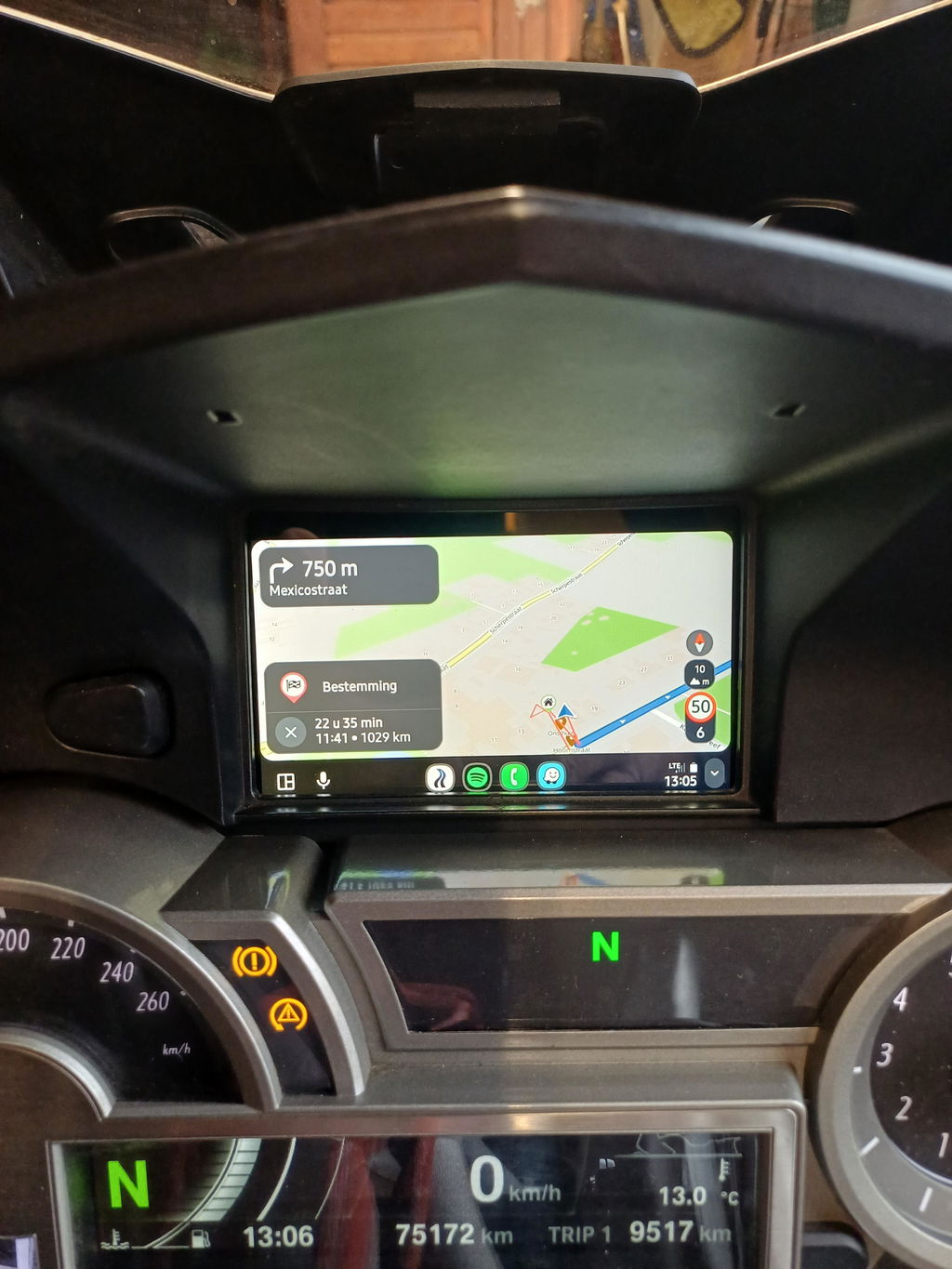
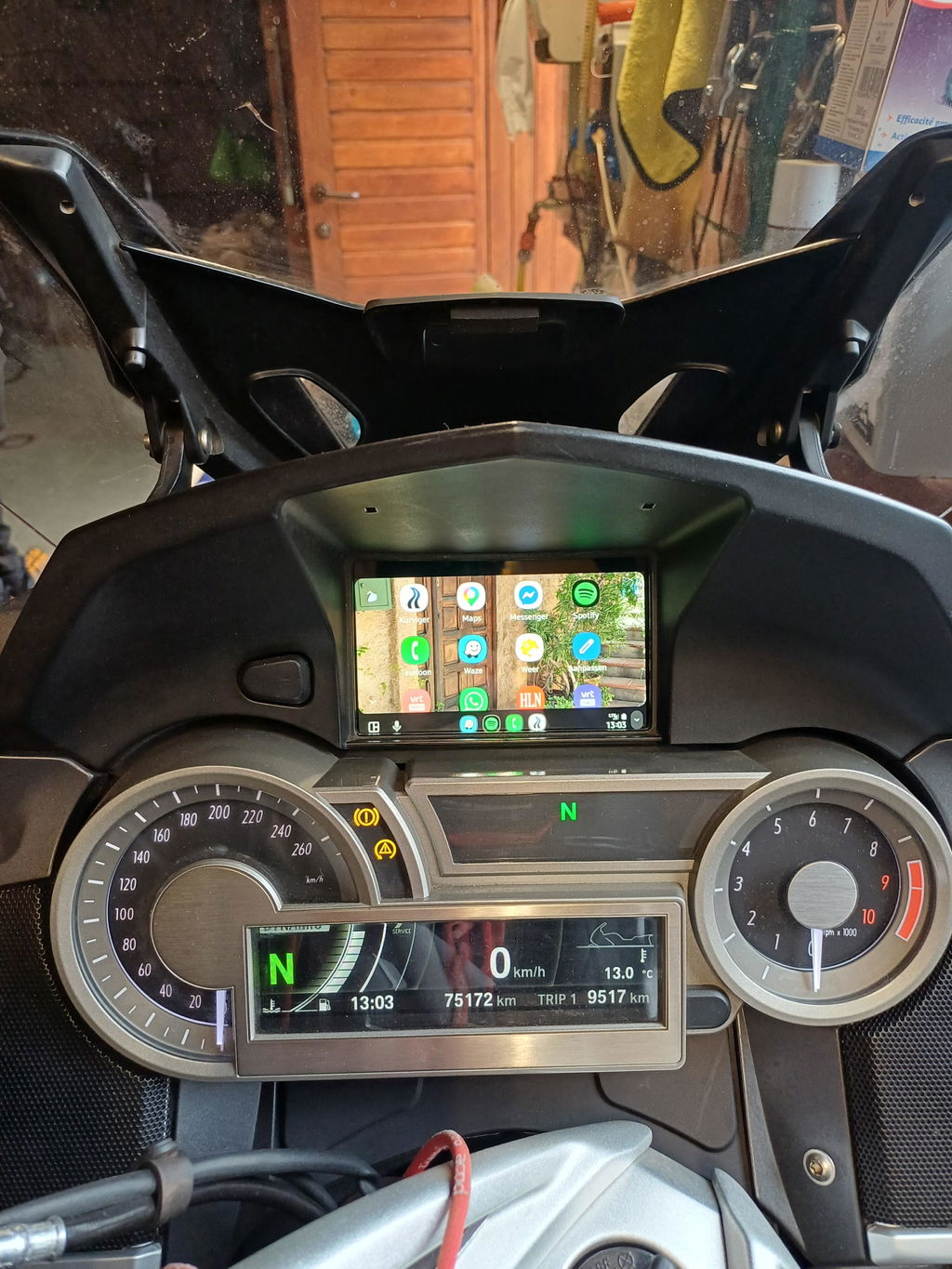
Screen Mirroring: Select Apple CarPlay or Android Auto to start phone mirroring.

Dash Cam: Open the live preview of the dashcam.

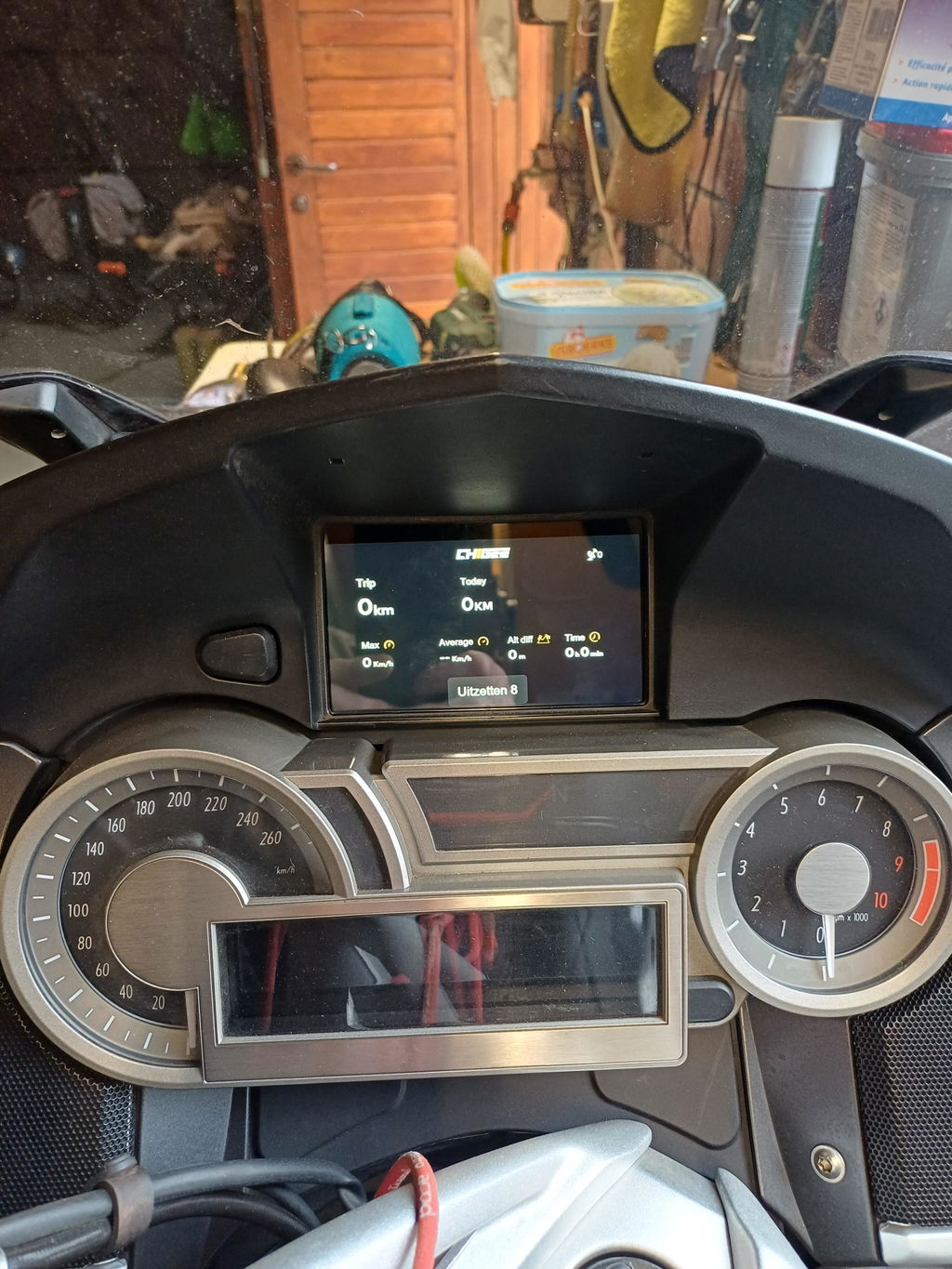
Dashboard: View real-time riding data.

Settings: Open system settings and preferences.

Speedometer: Shows current speed and trip/total mileage.

Direction: Shows the motorcycle’s current heading.

Tire Pressure Monitoring (TPMS): Shows real-time tire pressure (if TPMS is installed).

Live View (Dashcam Preview)

Photo: Take a snapshot.

Files: Open the video/photo library.

Record (Start/Stop): Start or stop recording.

Lock: Mark the current video as locked (protected from loop overwrite).

Settings: Open dashcam settings.

Camera Switch: Switch the live view between cameras.

Setting Up the Dash Cam

Resolution

Choose the recording resolution: 1080p/30fps or 720p/30fps.


Fusion Output

Combine the front and rear camera footage into one video file, shown in a large + small layout.


Video Length

Set the length of each loop-recording clip: 1 / 2 / 3 minutes.


Data Overlay

Add basic data to the video, such as time, speed, and GPS coordinates. For more overlay options, use the CHIGEE GO app.


Mirror Preview

Flip the preview image if needed (for example, when using the rear camera as a rear-view mirror).


Collision Lock

When enabled, an impact will automatically lock the current video segment so it won’t be overwritten by loop recording. Sensitivity: High / Medium / Low.


Parking Monitoring

When enabled, if vibration is detected while parked, the device will record a 30-second clip automatically. Sensitivity: High / Medium / Low.


Voice Recording (Mic)

Turn the microphone on/off or adjust mic volume.


Recording Light

Turn the recording indicator light on/off.

System Settings

Display & Volume

Adjust screen brightness and speaker volume. You can also enable Auto Brightness.


Storage

Check microSD card space and format the card. Back up important videos before formatting.
 

Options

Configure supported features and accessories, such as TPMS, Bluetooth headset, remote control, GPS, OBD, BSD, and system updates.


Video Download

Enable the device’s Wi-Fi hotspot, then connect your phone to download videos.


Tutorial

View the user guide on the device.


Reset

Restore factory settings. All settings will return to default.


About

View the device SN, firmware version, and Bluetooth name.


More

Set units (mileage/temperature), break reminders, and camera switching options.

Function settings

Language

Select the system language.


Time

Set the date and time. 


Tire Pressure (TPMS)

Supports real-time tire pressure monitoring with optional sensors. Alerts appear when pressure is abnormal. Tire data can also be added to recorded videos.


Bluetooth Headset

Connect a Bluetooth headset in CarPlay or Android Auto mode.


Remote Control

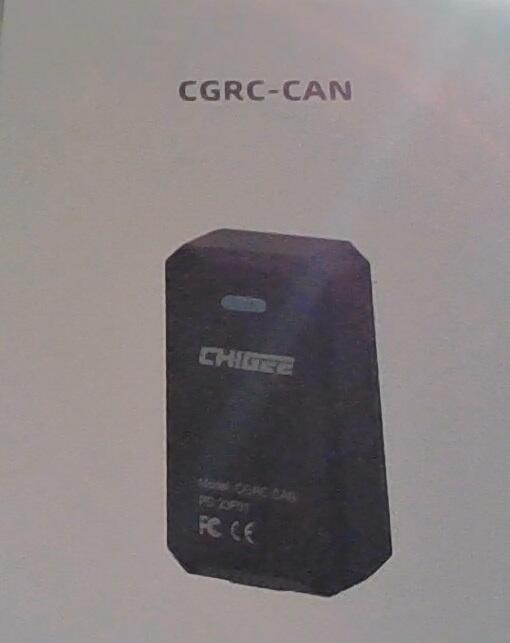
With the optional CGRC PRO remote, you can switch screens, take photos, lock videos, answer calls, and more.


Action Camera Control

Connect supported Insta360 / GoPro / DJI action cameras. Supports remote capture and other linked functions.
Note: DJI does not support live preview.


GPS

View GPS signal strength.


OBD

Connect an optional Bluetooth OBD module to read real-time engine data. OBD data can be overlaid on recorded videos.


Blind Spot Detection (BSD)

When a vehicle approaches from the rear side, the system provides visual and audible alerts.


Update

Update the system software. (microSD card required)

Professional Dashboard

Speed

Direction

Time

RPM / GPS Speed (optional accessory required)

Tire Pressure (optional TPMS required)

Voltage

Trip Elevation Difference

Start-up Time

Engine Coolant Temperature (optional accessory required)

Trip Mileage

Throttle Opening (optional accessory required)

Recording/Photo Settings

Recording/Photo Mode

View Angle

Start/Stop Recording

Switch Shooting Mode

Highlight (mark a moment)

Sleep/Wake

Recording Time

Switch Dashboard

Camera Preview

Camera Battery

Remaining SD Recording Time

Camera Battery

Remaining SD Recording Time

Recording Time

Start/Stop Recording

Exit Wi-Fi Preview / Switch to Bluetooth Control

Sleep/Wake

Switch Shooting Mode

Recording/Photo Settings

Recording/Photo Mode

Wireless Screen Mirroring

CarPlay

Pair your iOS device with CHIGEE-XXXX via Bluetooth to enable Apple CarPlay. Pair your device with Bluetooth to enable Android Auto.
 

Android Auto

Pair your device with Bluetooth to enable Android Auto.


HiCar

Enable Bluetooth on your phone, place it near the unit, select the detected device, and enter the pairing code to verify the connection.


CGPlay

使用手机打开CHIGEE GO APP扫码,以启用摩托车投屏导航。(China Only)


CarLife

车机连接Android手机热点并打开手机端百度CarLife应用,以启用投屏。(China Only) 

Connection

CarPlay

1. Use your iOS device to search for and connect to CHIGEE-XXXX via Bluetooth.
2. Wait for the CarPlay pop-up window on your phone, authorize the connection, and tap to use.

Unable to Connect to Carplay

Android Auto

1. Connect to Bluetooth:CHIGEE-XXXX on Android.
2. Ensure app is up to date.

*Do not connect to CHIGEE-XXXX le. It is for iOS notifications only.

Unable to Connect to Android Auto

HiCar

1. Enable Bluetooth on your Huawei phone and place it near this device.
2. Follow the on-screen instructions to enter the PIN code.
(After the initial setup, the device will automatically connect whenever Bluetooth is enabled on your phone.)
*This feature requires a Huawei or Honor phone with Hicar Smart Drive.
*Do not connect to CHIGEE-XXXX le. It is for iOS notifications only.

CarLife 

 (Only for China)

1. 开启手机热点。
2. 使用AIO-6连接手机热点后,打开CarLife应用即可完成连接。

CHIGEE GO APP

Scan the QR code to download the CHIGEE GO APP, follow the instructions, and bind the device to enable the 4G function.

You can find your Serial Number in two places: 1. On the back of the product packaging.  2. On your CHIGEE display: go to Settings → About, then scan the barcode at the bottom.

CHIGEE Go App User Guide

Firmware Upgrade

The AIO-5 will periodically perform system upgrades to introduce new product features. Follow the instructions below to upgrade the firmware.

(Before upgrading, please insert an SD card into the device and format it. Note: The AIO-5 does not include an SD card. You need to purchase and insert your own SD card.)

1. Go to 【Settings】-【System Update】and tap 'Check for Updates'.

2. If a new firmware version is available, tap "Update Now" button to download it. The device will restart automatically after the download is complete. Please keep the device powered on during the entire process.

*If a firmware update fails due to unexpected power loss or other issues, resulting in the device being unable to power on, please click the link here to restore the device to normal operation.

*The beta firmware version is now available for download. Users can install it to test new features and optimizations.

Cleaning & Care Instructions

1. Keep the lens glass clean. Dirt or debris may scratch the lens. Use a soft, dry cloth to wipe it gently.

2. If mud, sand, or dust builds up on the lens during use, rinse with clean water to remove it.

3. Do not use oily cleaners, detergents, or organic solvents. These may cause corrosion, reduce waterproof performance, or damage the protective coating.

Parameters

Dimensions

137x79x27mm

Display

5 inch 1280x720 IPS

Weight

320g

Rated Input Voltage

12-18V DC

Low Voltage Protection Voltage

12V

Bluetooth

Bluetooth 5.0

Positioning

GPS/QZSS、BDS/GLONASS、Galileo

Waterproof Rating

IP69K

CPU

Dual-core A53

RAM

2GB

TF Card Expansion

Up to 256GB

Operating System

CGOS

WLAN

2.4/5GHz

Speaker

Supported

Optional Accessories

CGRC Pro remote, OBD Module, TPMS

Optional Accessories