



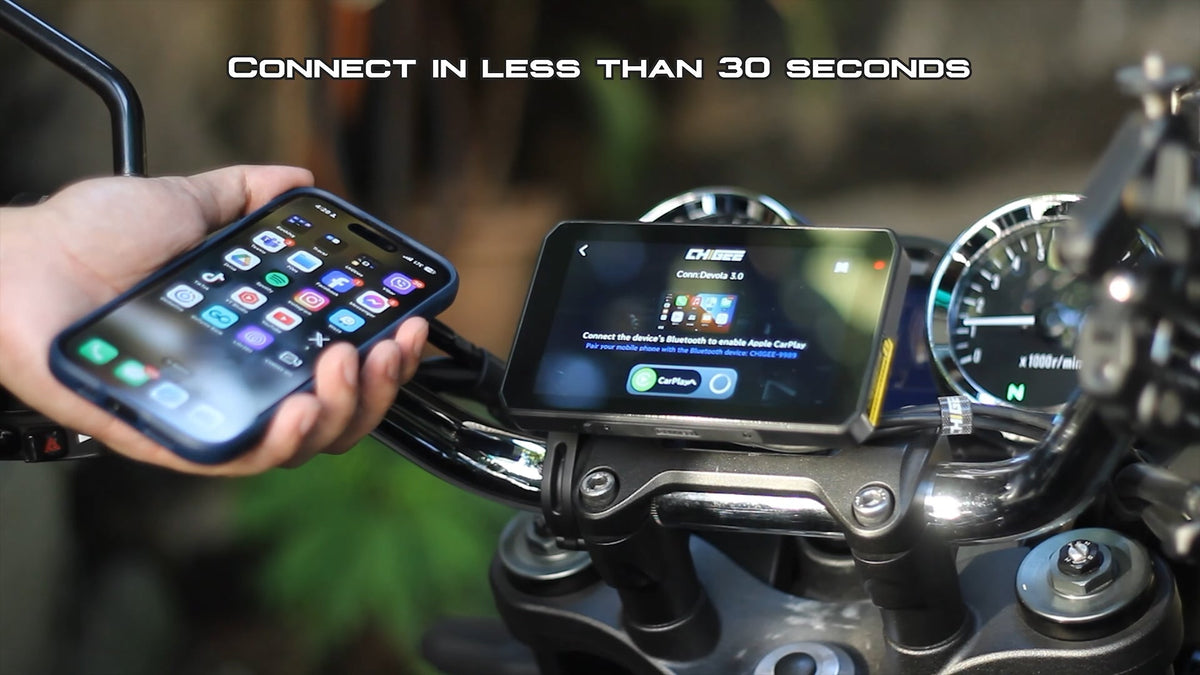
Experiencing connectivity issues with CarPlay or Android Auto through your Chigee device can be frustrating, especially when you're eager to enjoy a hassle-free driving experience.

Here's a comprehensive step-by-step guide to help you troubleshoot the most common connection issues and have a smoother connection experience.
Let's dive in.
CarPlay Connection Issues
If your CarPlay connection frequently drops, the following factors could be at play:
Step 1. Riding Environment Interference
External factors like strong radio frequencies or high power lines can interrupt the CarPlay connection.
If you're in an area with high levels of interference, try moving to a different location to see if the issue improves.
Step 2. Phone's Low Power Mode Enabled

Low Power Mode restricts background activities on your iPhone and can cause frequent disconnections. Make sure it is disabled.
To disable low power mode on your iPhone:
- Open Settings: Tap on the Settings icon on your iPhone's home screen.
- Tap Battery: Scroll down a little and select the "Battery" option.
- Toggle Low Power Mode: Look for the "Low Power Mode" and switch off.
To disable low power mode on an Android:
The specific steps to disable Low Power Mode may vary slightly depending on the Android version and phone manufacturer.
However, here's a general approach:
- Open Settings: Tap on the Settings icon on your Android phone's home screen.
- Find Battery Settings: Look for a section related to "Battery," "Power," "Power Saving", or “Device Care”. The exact wording may differ.
- Disable Power Saving Mode: Locate the power saving mode toggle and turn it off.
Step 3. 5GHz Interference
The 5GHz wireless band, which connects your iPhone to Chigee, is more prone to interference than the 2.4GHz band.
Switching to the 2.4GHz band can improve connection stability for several reasons:
- Extended Range: The 2.4GHz band covers a larger area.
- Stronger Signal Through Obstacles: It remains stable even with walls or other barriers.
- Better Device Compatibility: The 2.4GHz band is more widely supported across devices.
Switch to the 2.4GHz band:
Go to Car Link < Settings < Enable 2.4G AP.

Step 4. Recent iPhone Update
Software updates may reset certain settings on your iPhone, which can impact CarPlay.
Follow these steps to check and adjust your settings after an update:
- Open Settings on your iPhone.
- Go to Focus > Do Not Disturb.
- Tap on Driving Mode and ensure it is disabled. This setting can disconnect connections while driving.
- Return to Settings and review any other settings that might have reverted to default, adjusting them as needed for CarPlay to function smoothly.
By confirming these settings, you can reduce the chances of connection issues with CarPlay after updates.
Step 5. Check if it's connected to the correct network

Make sure your iPhone is connected to the correct Chigee network.
- CHIGEE-XXXX: Use this for CarPlay or Android Auto.
- CHIGEE-XXXX LE: Reserved for IOS ANCS connection only.
Additional Troubleshooting Steps for CarPlay
If the above steps don't resolve the disconnection issues, try these additional steps:
- Restart Your iPhone and CarPlay System to reset any temporary glitches.
- Check for iOS Updates in Settings > General > Software Update.
- User-Provided Solution: For iOS 16 and iPhone 14 users, follow this guide to address common CarPlay issues.
SOURCE: CarPlay Keeps Disconnecting
Still Unable To Connect To CarPlay
If any of the above steps fail to establish a connection with CarPlay, follow the steps below:
Step 1: Check Content Restrictions
Ensure that CarPlay isn't restricted on your iPhone:
- Open Settings > Screen Time > Content & Privacy Restrictions.
- Confirm that CarPlay is enabled.
Step 2: Ensure Your VPN Is Turned Off
VPN services may block communication between your phone and the CHIGEE Display.
Step 3: Disable Auto-Connecting to Wi-Fi
If your phone is within range of known Wi-Fi networks, make sure to disable auto-join for those networks.
Auto-connecting to Wi-Fi may interfere with the CarPlay connection.
To disable auto-join:
- Go to Settings > Wi-Fi
- Tap the "i" icon next to the network
- Tap Auto-Join
Step 4: Unpair and Reconnect
Unpair your iPhone from the Chigee device and try reconnecting:
- Open Car Link > Settings > Paired Devices.
- Remove your iPhone and attempt to pair again.

Step 5: Complete the Reset Process
On your CHIGEE device:
- Go to Settings > Reset to reset the device.
On your iPhone:
- Go to Settings > Bluetooth, and forget all CHIGEE-related Bluetooth devices.
- Go to Settings > General > CarPlay, and forget all CHIGEE-related devices.
- Turn off Wi-Fi (ensure you're not connected to any Wi-Fi network).
- Reconnect Bluetooth and tap "Pair" → "Allow" → "Turn on WLAN & Connect".
⚠️ Important: Do not select "Use Bluetooth Only". - Restart your iPhone.
- Try reconnecting to your CHIGEE device again.
If you're still unable to connect, contact CHIGEE support for further assistance.
SOURCE: Unable to Connect to Carplay
Android Auto Connection Issues
If you're experiencing issues with Android Auto on your Chigee device, follow these steps to troubleshoot and restore the connection:
Step 1: Initial Checks
- Allow Android Auto to connect to new vehicles in your phone's settings.
- Go to Settings > Apps > Android Auto and ensure all necessary permissions are granted.
-
Disable your phone's personal hotspot.
- Make sure your Android OS, Android Auto app, and Google Play Services are all up to date.
- Disable Battery Savers or Optimizations: Set Android Auto to "Unrestricted" in your phone's battery or app optimization settings.
-
VPN is turned off: VPN services may block communication between your phone and the CHIGEE device.
-
Wi-Fi acceleration is disabled: This feature may use both 2.4GHz and 5GHz channels, which can interfere with the connection.
You can usually find it here:
Settings > WiFi Settings > Network Acceleration -
Your phone supports Android Auto:
Please note that some brands do not support Android Auto, including: International Huawei / Vivo / Oppo
Step 3: Reset Your CHIGEE Display
On the CHIGEE Display:
Go to Settings > Reset > Confirm Reset
This will restore factory settings and clear any old pairing data.
Step 4: Forget Bluetooth Pairing
On your Android phone:
- Open Bluetooth settings
-
Forget/unpair all CHIGEE-related Bluetooth
- Restart your phone (recommended)
Step 5: Wi-Fi and Reconnection Steps
Step 4: Try Connecting with a Different Device
Older phones may have outdated Bluetooth hardware, which can cause connection issues. If possible, test Android Auto with a different Android phone to help determine the issue. This kind of cross-testing can quickly rule out phone compatibility issues.
SOURCE: Unable to Connect to Android Auto
Additional Assistance
If these steps don't resolve the connection problem, contact help@chigeego.com or submit a ticket for further help. Join our Facebook group to share your questions and get support from our team!
Also read: Why Certain Apps May Not Display on Your Chigee Screen






2 comments
alvaro
comprei o meu na china agora na hora de ativar aqui no Brasil nao tem a opçao
como devo fazer para ativar ele ?
Vinicius Barboza
Comprei mapareho usei 3 vezes, ele não fica conectado no BT e nao consigo suporte!
Leave a comment
All comments are moderated before being published.
This site is protected by hCaptcha and the hCaptcha Privacy Policy and Terms of Service apply.