

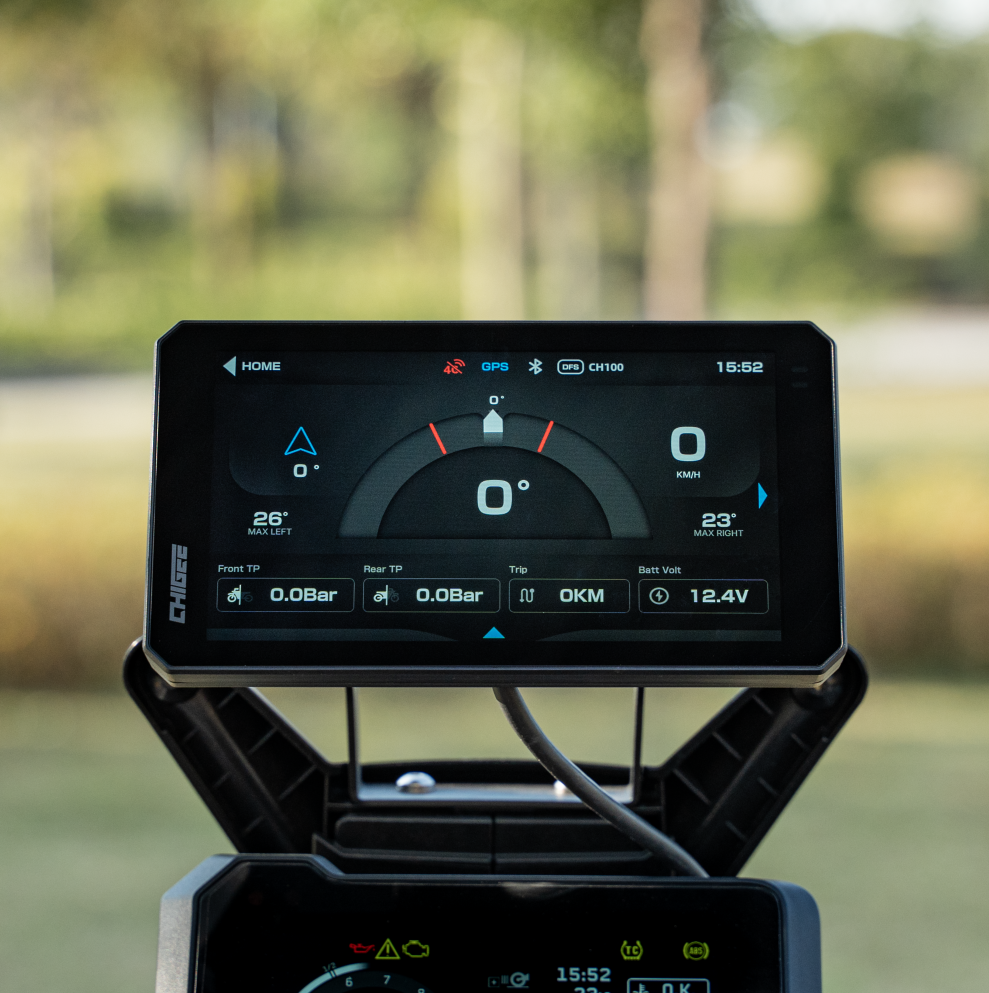
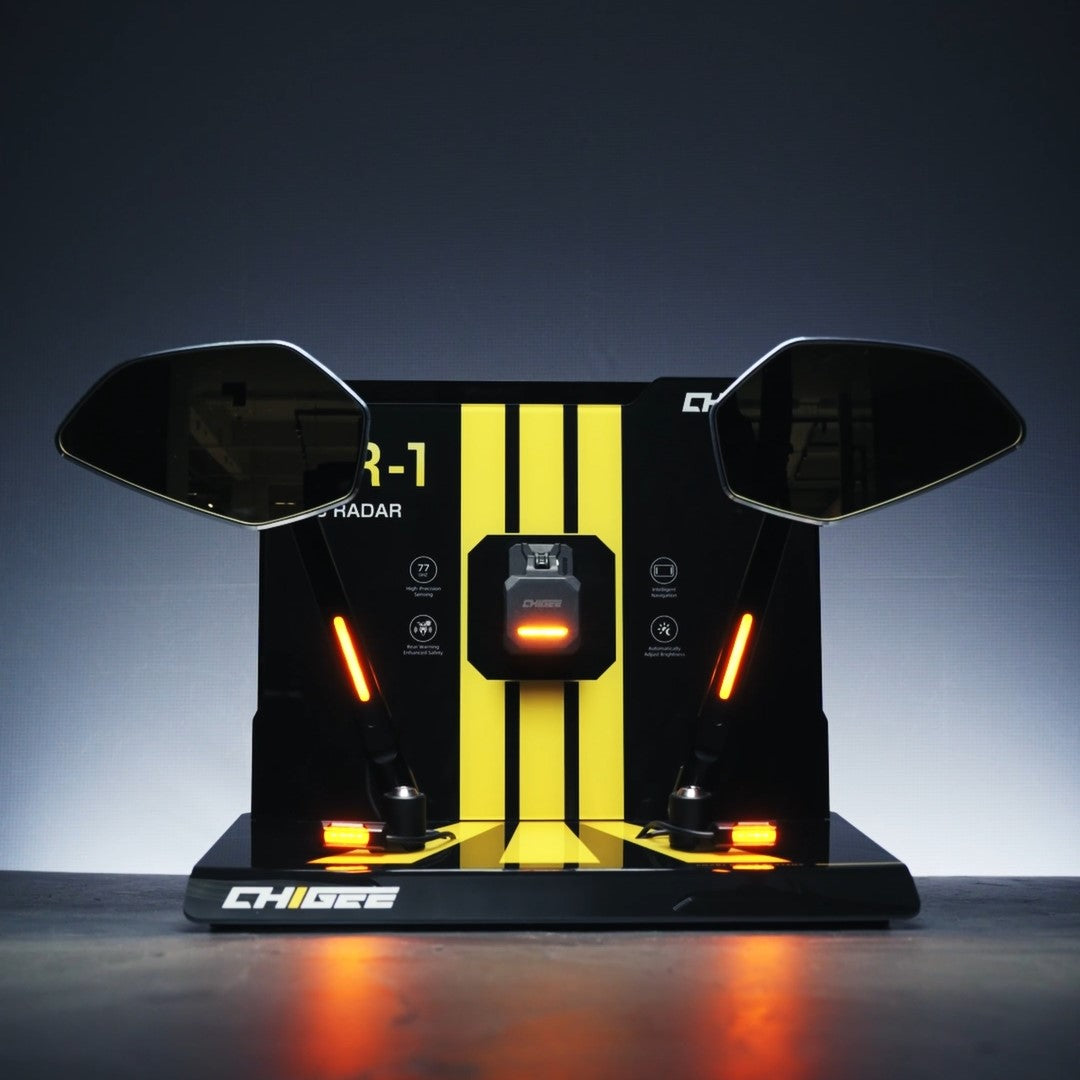
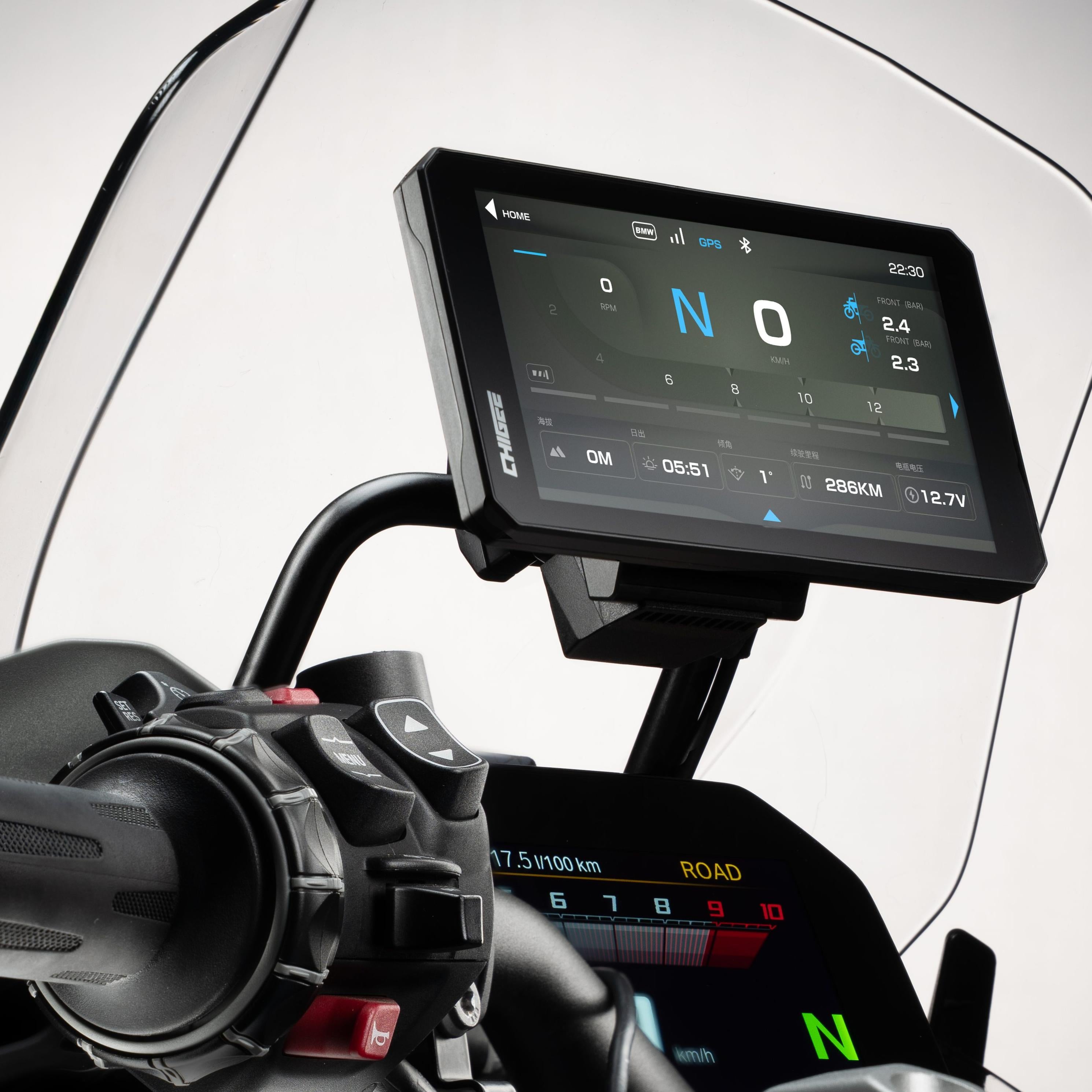
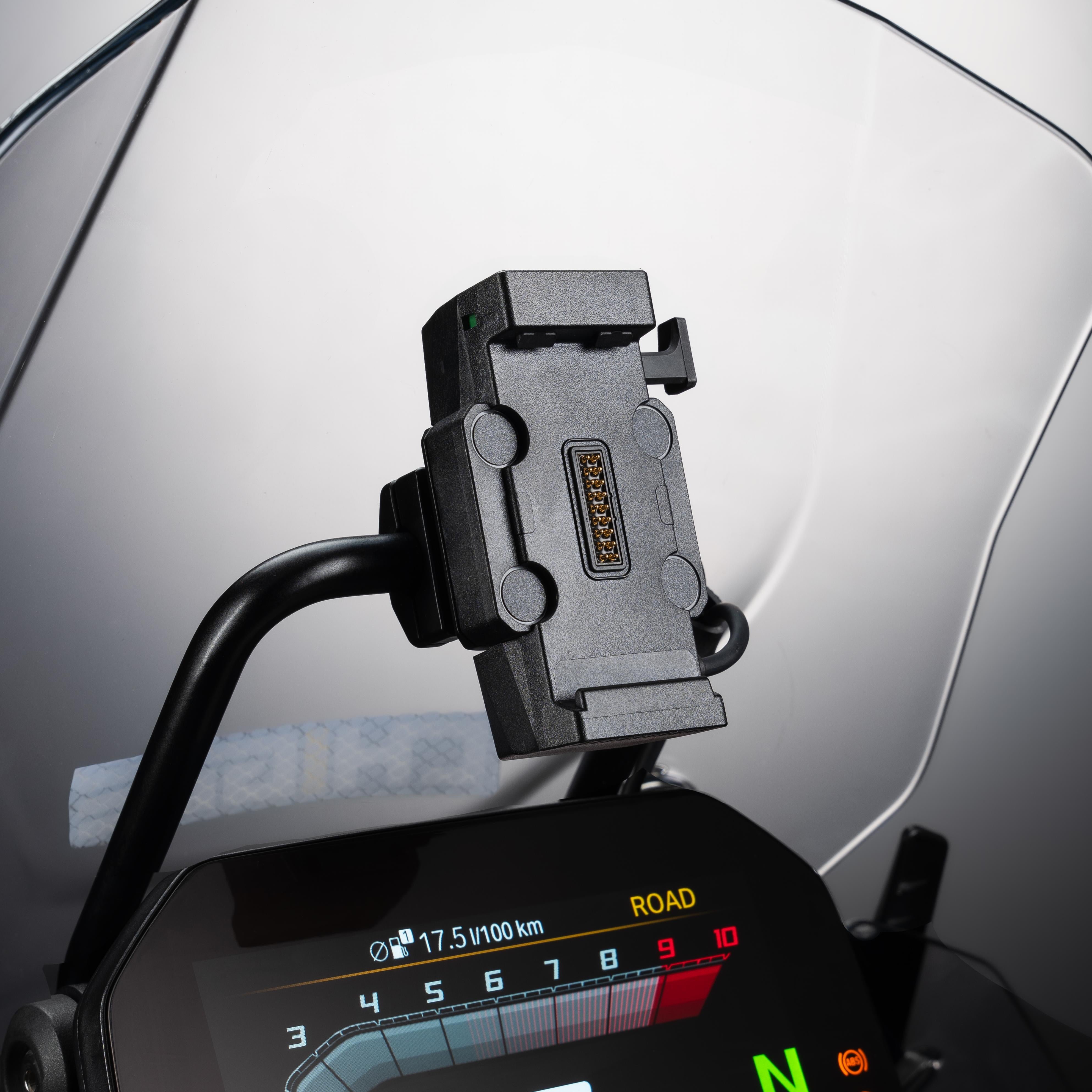

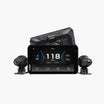
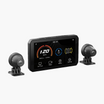
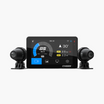

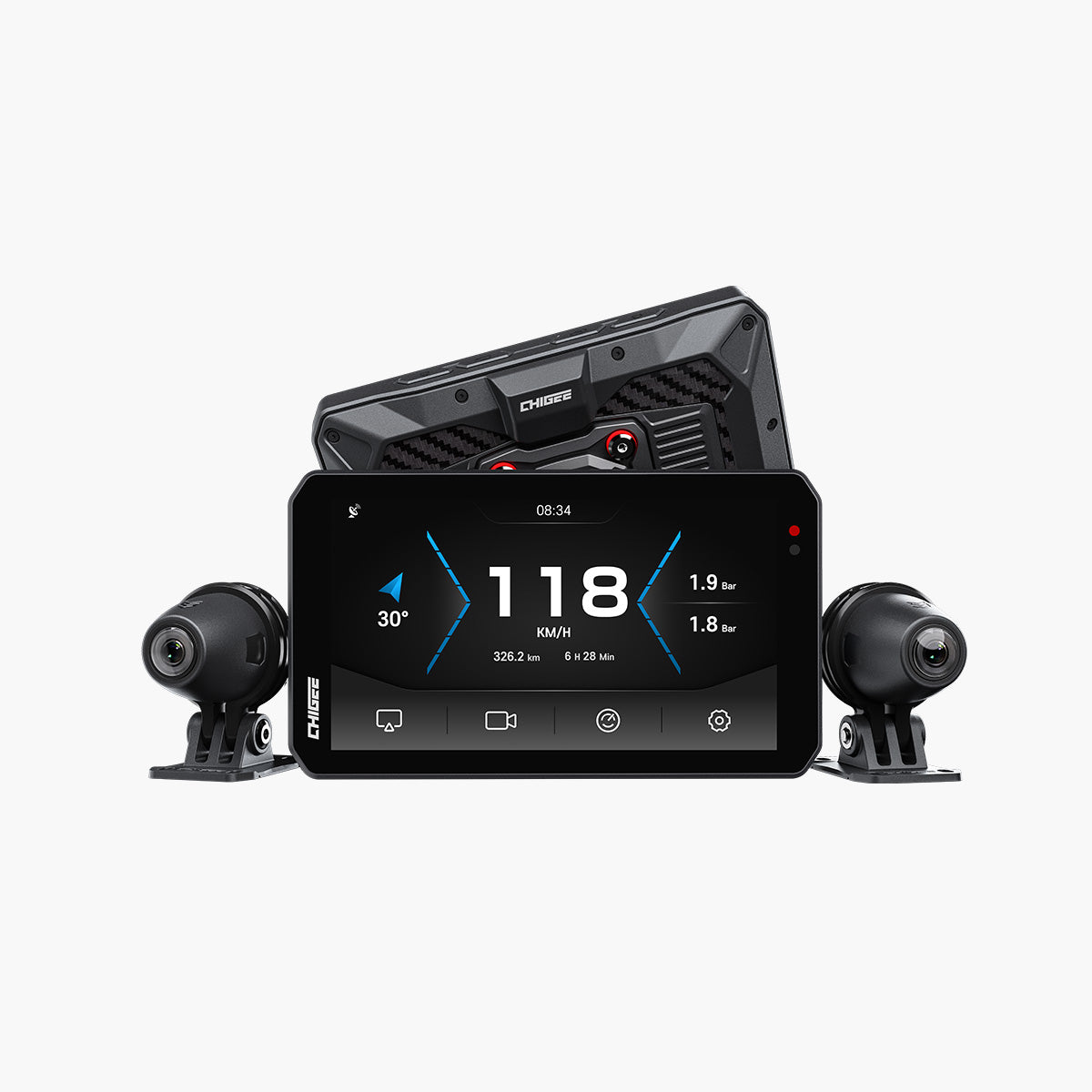
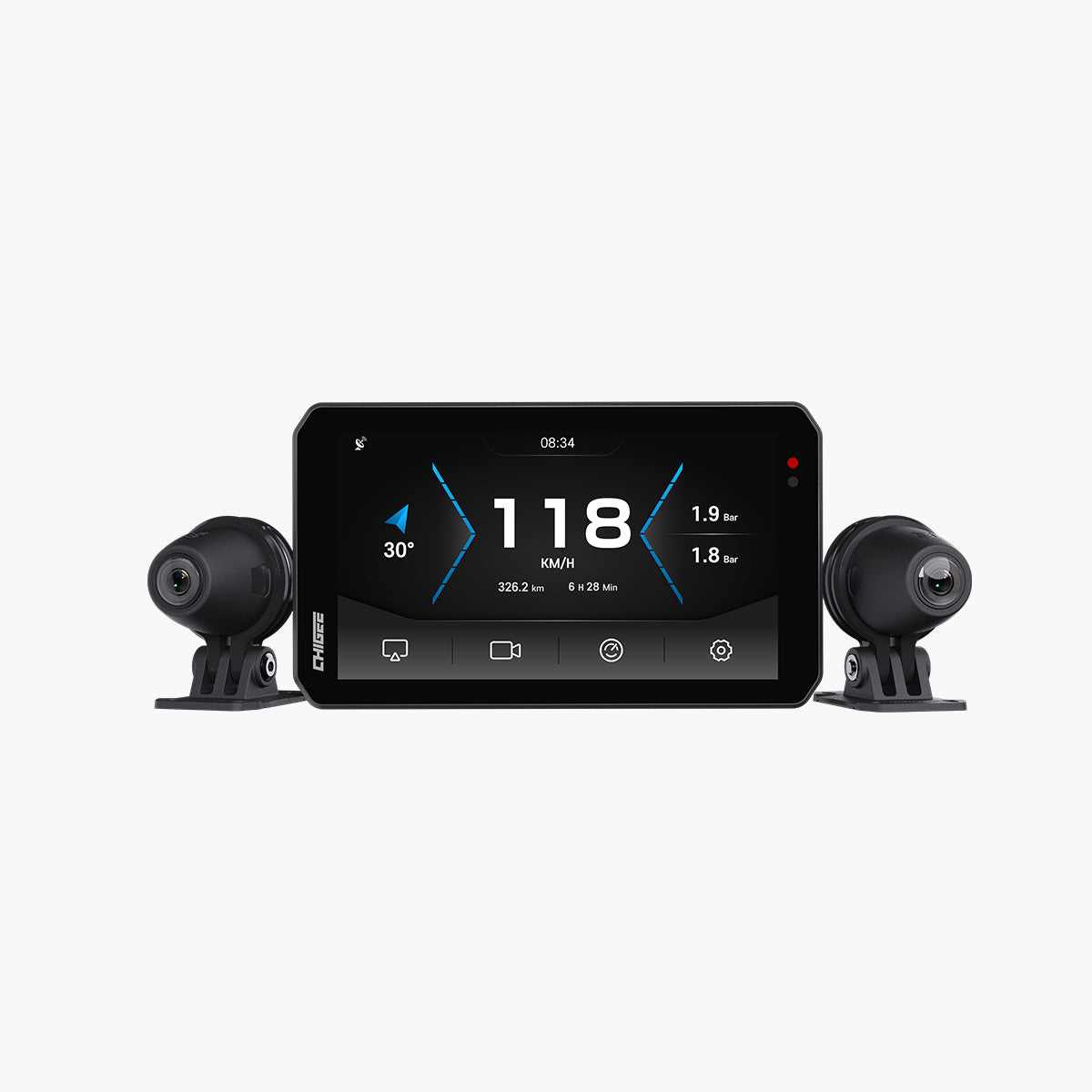
Your AIO-5 display gets better with every firmware update. New features, stability improvements, and bug fixes arrive regularly through over-the-air updates. This guide covers everything you need to optimize your AIO-5: how to update firmware without issues, the best pairing methods for CarPlay and Android Auto, essential CHIGEE GO app features, and the settings that actually matter for maps, music, and calls. Join the Chigee Facebook Group to share tips and learn from thousands of other riders.
Firmware Updates: Keeping Your Display Current
Firmware updates bring meaningful improvements to your AIO-5. Recent updates have added vertical Wonder Wheel scrolling, improved TPMS alert customization, enhanced CarPlay and Android Auto stability, and faster boot times. Staying current ensures you get these features, bug fixes, and performance optimizations as soon as they're available.
Why Updates Matter
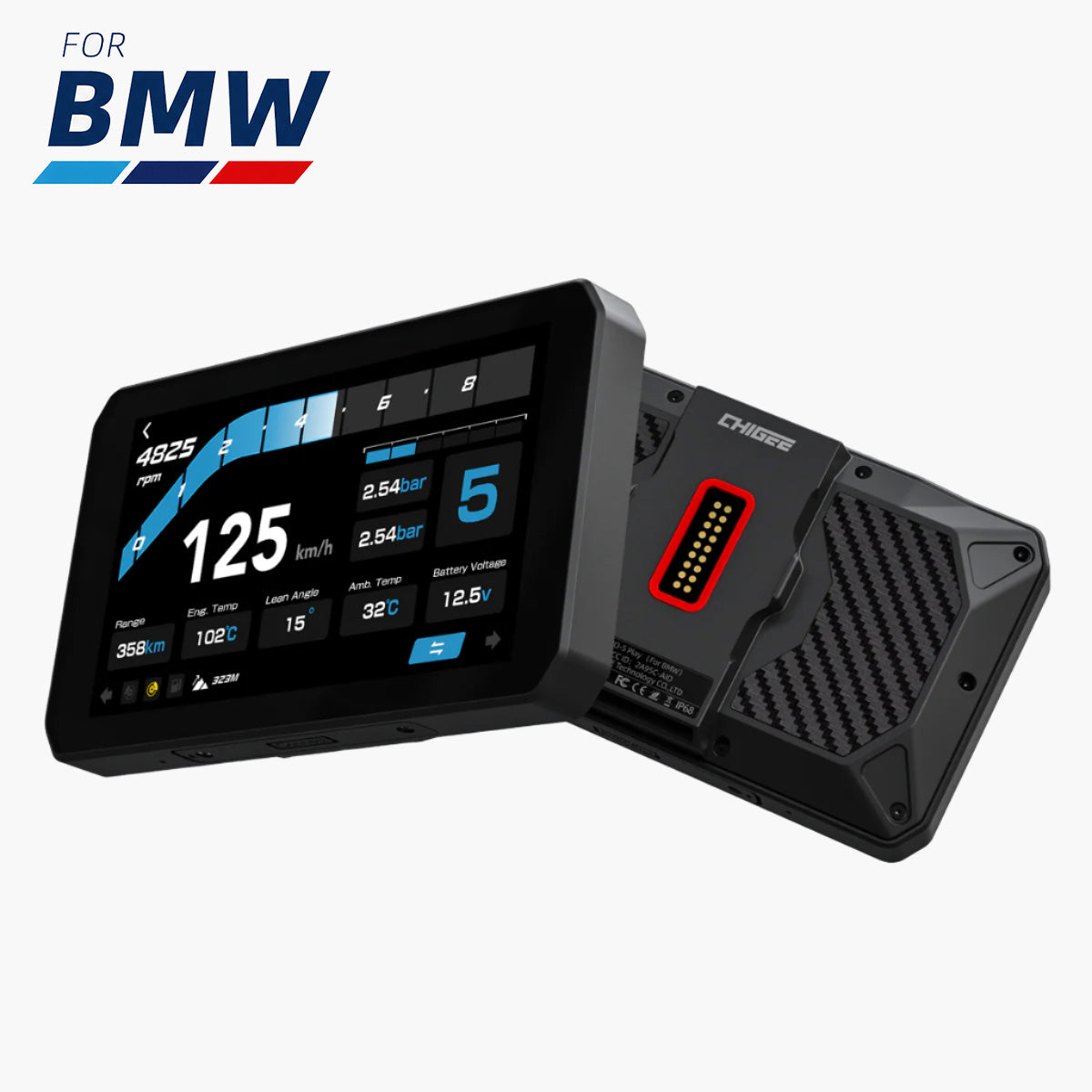
Each firmware release addresses issues riders report: connection drops, slow boot times, compatibility with new phone models, enhanced camera performance on the AIO-5 Lite, and better BMW integration on the AIO-5 Play for BMW. Skipping updates means missing stability improvements that make daily riding smoother.
Security patches also arrive through firmware. These protect against vulnerabilities that could affect your device's connection to your phone or prevent unauthorized access when using features like anti-theft monitoring.
Over-the-Air (OTA) Updates: The Easiest Method
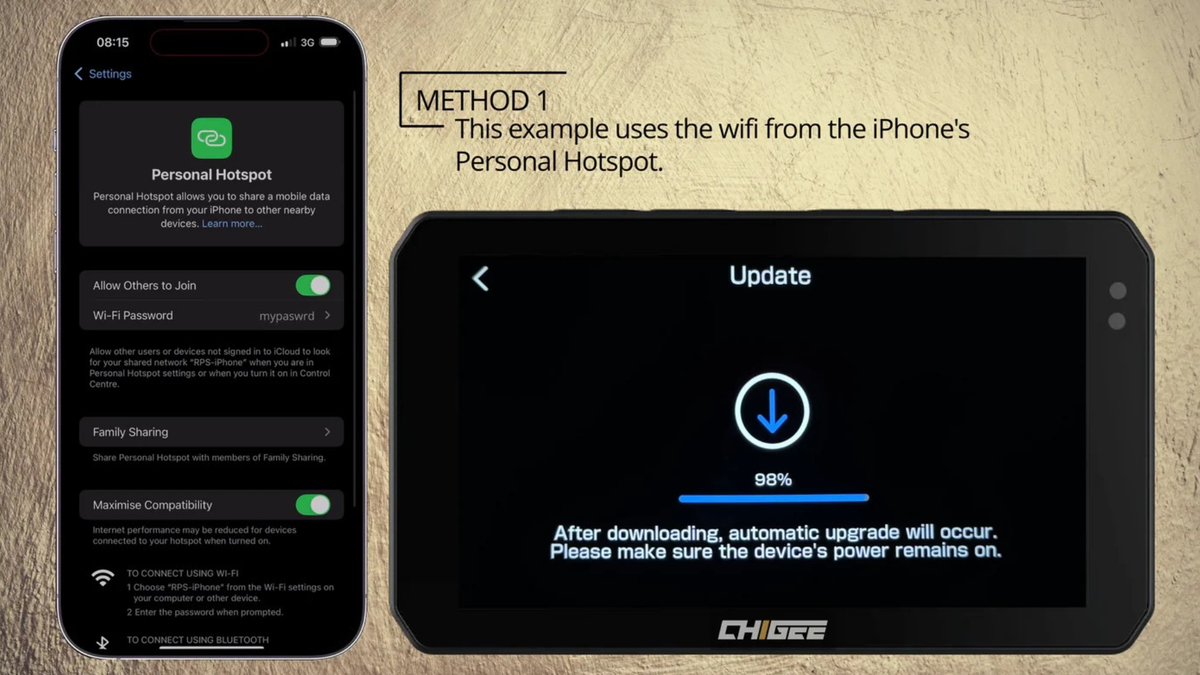
The OTA update method is the most convenient when you're near Wi-Fi. This works at home, at work, or anywhere you can connect to a stable network.
What You'll Need:
- MicroSD card (U3-grade recommended, 8GB minimum)
- Stable Wi-Fi connection or mobile hotspot
- 15-30 minutes for download and installation
Critical: The AIO-5 series requires a microSD card for OTA updates. The built-in eMMC memory cannot be used for firmware updates. If your device won't recognize the SD card, format it to FAT32 on your computer before inserting it.
How to Update via OTA:
- Insert your microSD card into the device
- Turn on your motorcycle's ignition (or power on the device)
- Navigate to Settings > Features > Update
- Connect to Wi-Fi (tap the Wi-Fi icon and select your network)
- Tap "Check for Updates"
- If an update is available, tap "Update Now"
- Keep the device powered on during the entire process
- The device will restart automatically when complete
Do not turn off the motorcycle or disconnect power during installation. If power is lost mid-update, the device may fail to boot. We'll cover recovery options below.
Manual Firmware Update: When OTA Isn't Available
If you're away from Wi-Fi, on a long trip, or having connection issues, manual updates give you control. This method downloads the firmware file to your computer, transfers it to the SD card, and installs from there.
How to Update Manually:
- Visit the Chigee support site and download the latest firmware for your model
- Extract the firmware file (usually a .zip file)
- Format your microSD card to FAT32 on your computer
- Copy the firmware file to the root directory of the SD card
- Insert the SD card into your AIO-5 device
- Power on the device with the motorcycle's ignition
- Navigate to Settings > Features > Update
- The device will detect the firmware file on the SD card
- Tap "Update Now" and wait for completion
Tip: Keep the firmware file on your SD card after updating. If you need to downgrade to a previous version due to compatibility issues, you'll have it ready.
SD Card Compatibility
Not all microSD cards work reliably with the AIO-5. We strongly recommend U3-grade cards to prevent upgrade failures and "insufficient read/write speed" warnings.
Recommended Specifications:
- Minimum: 8GB capacity
- Speed class: U3 / A2 / V30
- Maximum supported: 256GB
If you have camera recording on the AIO-5 Lite, larger cards (64GB-256GB) store more footage before loop recording overwrites older clips. For the AIO-5 Play without cameras, 8-16GB is sufficient for firmware updates and offline maps.
Troubleshooting Failed Updates
Device Won't Boot After Update:
If your update fails due to unexpected power loss or the device won't turn on after updating, you'll need to perform a firmware recovery. Visit the Chigee support site and follow the recovery instructions specific to your model. This typically involves:
- Downloading the recovery firmware file
- Formatting your SD card to FAT32
- Copying the recovery file to the SD card
- Holding specific buttons while powering on to enter recovery mode
- Following on-screen prompts to restore the device
SD Card Not Recognized:
If the device doesn't detect your SD card:
- Format the card to FAT32 on your computer
- Check that it's U3-grade (slower cards may not be recognized)
- Try a different card to rule out hardware issues
Update Stalls or Takes Too Long:
If the update appears stuck:
- Ensure stable Wi-Fi (weak signal can cause timeouts)
- Close other apps on your phone that might be using bandwidth
- Try manual update method if OTA continues failing
For more connection troubleshooting, see our guide on Troubleshooting Bluetooth & GPS Issues.
CHIGEE GO App: Essential Features
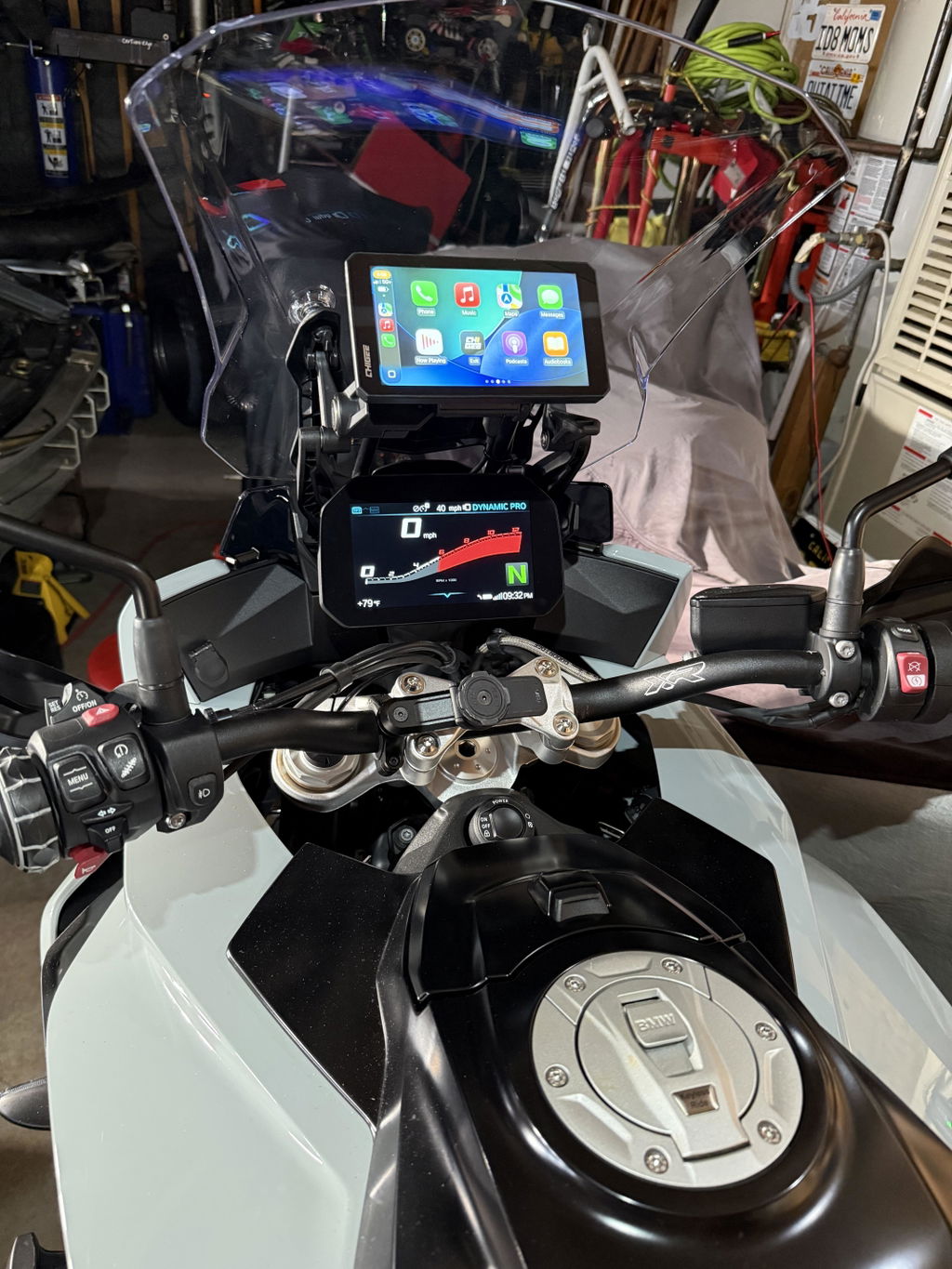
The CHIGEE GO app is designed primarily for models with dashcam functionality like the AIO-5 Lite. If you have the AIO-5 Play without cameras, you don't need the app for daily use. Your device works seamlessly with just CarPlay or Android Auto.
What the App Does
For AIO-5 Lite owners, the CHIGEE GO app provides:
Dashcam Management:
- View recorded footage directly on your phone
- Lock important clips to prevent overwriting
- Download and share videos without removing the SD card
- Adjust camera settings (resolution, loop duration, G-sensor sensitivity)
Device Settings:
- Configure Blind Spot Detection sensitivity
- Set custom TPMS alert thresholds for front and rear tires
- Adjust Parking Monitor settings (sensitivity, duration)
- Manage firmware updates remotely
Trip Analysis (AIO-6 LTE only):
- View riding statistics (distance, time, routes)
- Access GPS-embedded ride data
- Enable 4G features like tracking and SOS alerts
How to Connect to CHIGEE GO
The app connects to your AIO-5 Lite via Wi-Fi Direct. You need to be within 8-10 meters of your device for the connection to work.
First-Time Setup:
- Download CHIGEE GO from the App Store or Google Play
- Turn on your AIO-5 device (ignition on)
- Open the CHIGEE GO app on your phone
- Connect to the device's Wi-Fi (shown as CHIGEE-XXXX in your Wi-Fi settings)
- Follow in-app prompts to pair and bind the device
Viewing Dashcam Footage:
- Connect your phone to the AIO-5's Wi-Fi
- Open CHIGEE GO
- Navigate to "Files" or "Recordings"
- Select clips to view, lock, or download
- Share via message or email directly from the app
Tip: The Wi-Fi connection is only for app access and file transfer. It's separate from CarPlay/Android Auto, which uses Bluetooth pairing plus Wi-Fi for screen mirroring.
Managing Camera Settings
If you have the AIO-5 Lite with cameras:
Loop Recording Duration:
- Set clips to 1, 2, or 3 minutes
- Shorter clips make it easier to find specific moments
- Longer clips reduce the number of files created
G-Sensor Sensitivity:
- Low: Only locks clips during hard impacts
- Medium: Locks clips during moderate braking or bumps
- High: Locks clips for minor road irregularities (may create many locked files)
Parking Monitor Settings:
- Trigger sensitivity: Adjust how much motion/vibration activates recording
- Battery cutoff: Set minimum voltage (default 12V) to prevent draining your battery
- Recording duration: Set how long to record after trigger (default 1 minute)
Pairing Your Phone: CarPlay & Android Auto
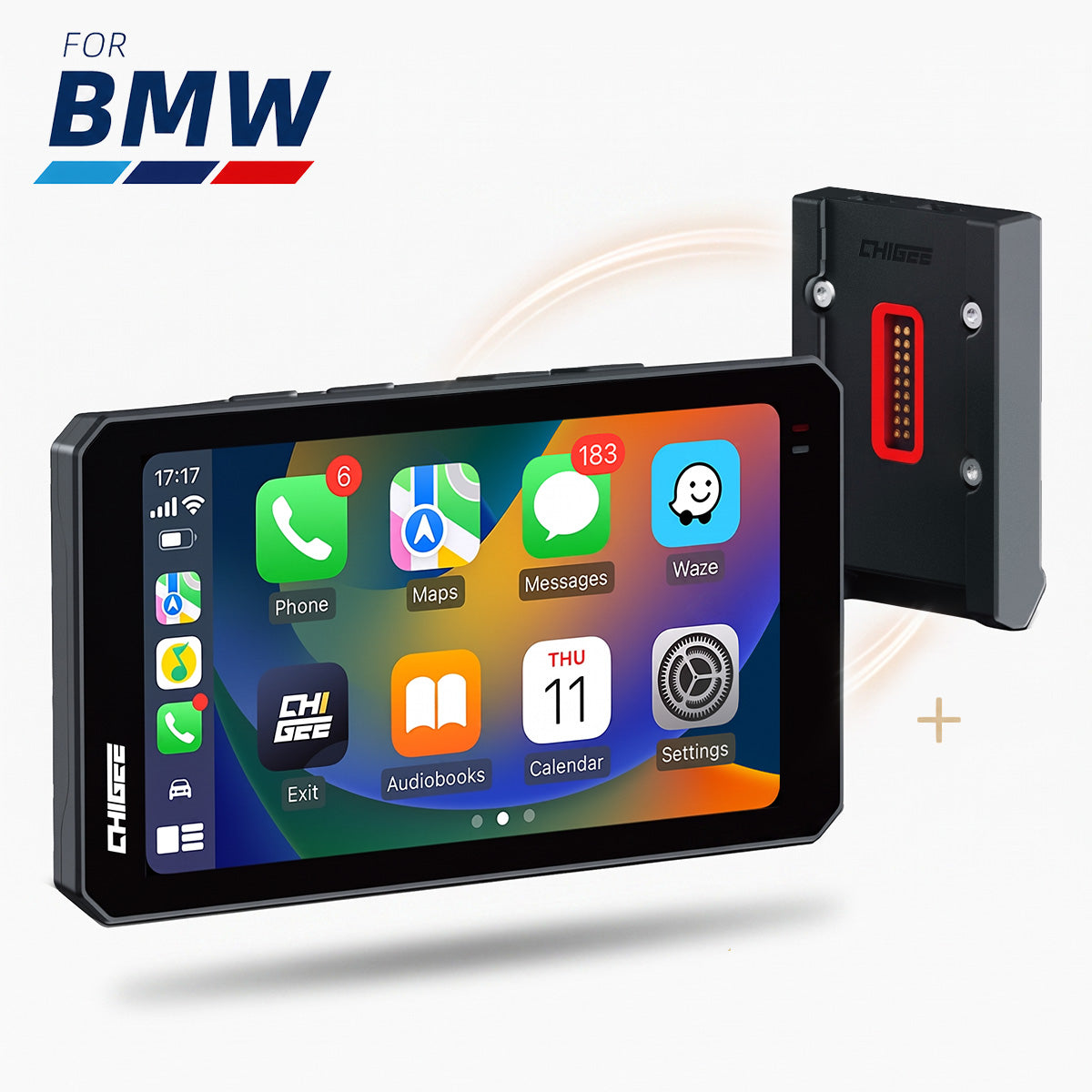
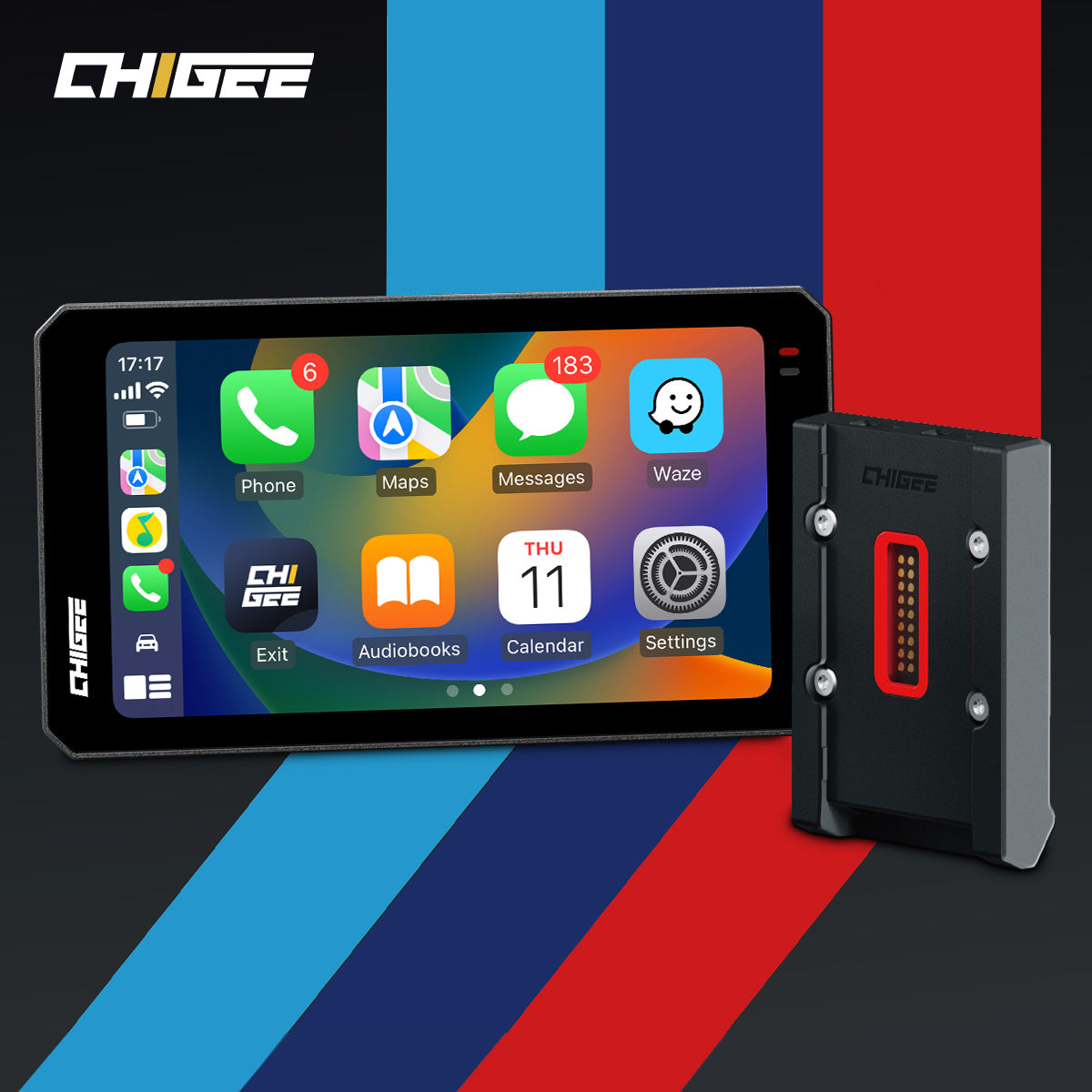
Reliable pairing between your phone and AIO-5 is the foundation of a good experience. Once paired correctly, your device reconnects automatically every time you start the bike, with routes appearing exactly where you left off.
First-Time Pairing: iOS (CarPlay)
CarPlay uses both Bluetooth and Wi-Fi to deliver smooth, high-bandwidth screen mirroring. Both must be enabled.
How to Pair:
- Enable Bluetooth and Wi-Fi on your iPhone
- Turn on your AIO-5 device
- Look for "CHIGEE-XXXX" in your Bluetooth settings
- Tap to pair and accept the pairing request
- Authorize CarPlay when prompted on your phone
- The AIO-5 will appear in Settings > General > CarPlay on your iPhone
Important: Do NOT select "Use Bluetooth Only" when pairing. CarPlay requires both Bluetooth (for connection handshake) and Wi-Fi (for screen mirroring).
Common iOS Pairing Issues:
CarPlay Disconnects Frequently:
- Disable Low Power Mode (restricts background activities)
- Turn off auto-join for nearby Wi-Fi networks (interferes with CarPlay's Wi-Fi Direct)
- Forget all CHIGEE devices in Settings > General > CarPlay and re-pair
- Restart your iPhone to clear temporary glitches
Can't See CarPlay Prompt:
- Go to Settings > Screen Time > Content & Privacy Restrictions
- Confirm CarPlay is enabled
- Disable any active VPN (can block communication with the display)
First-Time Pairing: Android (Android Auto)
Android Auto also uses Bluetooth plus Wi-Fi Direct for screen mirroring. The setup process is similar to iOS but requires checking a few Android-specific settings.
How to Pair:
- Enable Bluetooth and Wi-Fi on your Android phone
- Turn on your AIO-5 device
- Look for "CHIGEE-XXXX" in Bluetooth settings
- Tap to pair and accept the pairing request
- Open Android Auto (or let it open automatically)
- Follow on-screen prompts to grant permissions
Android Auto Permissions:
Navigate to Settings > Apps > Android Auto and ensure all permissions are granted:
- Location (required for navigation)
- Microphone (required for voice commands)
- Phone (required for call integration)
- Contacts (optional but recommended)
- SMS (optional, for message notifications)
Common Android Pairing Issues:
Android Auto Disconnects Frequently:
- Disable Developer Options entirely (can affect wireless stability)
- Clear Android Auto cache: Settings > Apps > Android Auto > Storage > Clear Cache
- Reset network settings: Settings > System > Reset Options > Reset Wi-Fi, mobile & Bluetooth
- Disable personal hotspot (can override the CHIGEE Wi-Fi Direct channel)
Can't Connect at All:
- Ensure Android Auto app is updated (check Google Play)
- Update Google Play Services
- Allow Android Auto to connect to new vehicles in app settings
- Try a different Android phone to rule out compatibility issues
Android Auto Works But Keeps Dropping:
- Turn off Bluetooth A2DP hardware offload: Settings > System > Developer Options > toggle OFF
- Disable Wi-Fi optimization features like "Switch to mobile data" or "Adaptive Wi-Fi"
- Check for external interference (drops in the same location suggest environmental factors)
For detailed Android Auto troubleshooting, see our guide on Troubleshooting Connection Issues.
Auto-Reconnection
Once paired correctly, your phone reconnects automatically when you start the bike. This works as long as:
- Bluetooth and Wi-Fi remain enabled on your phone
- Your phone is within range (typically 5-10 meters)
- No other device is actively connected to the display
If reconnection fails:
- Toggle Bluetooth and Wi-Fi off/on on your phone
- Restart the AIO-5 device (turn ignition off and back on)
- Forget and re-pair if issues persist
Best Settings for Maps, Music, and Calls
The AIO-5 mirrors your phone's apps through CarPlay or Android Auto. That means the best "settings" start with your phone: choosing the right navigation app, configuring music services, and enabling call integration before you even mount the device.
Navigation Apps: What Works Best
The AIO-5 works with any navigation app that supports CarPlay or Android Auto. The top-tested apps include:
For iOS:
- Apple Maps (native CarPlay integration, works offline)
- Google Maps (live traffic, comprehensive POI data)
- Waze (community-reported traffic and hazards)
- Sygic GPS Navigation (detailed offline maps)
For Android:
- Google Maps (default, best integration with Android Auto)
- Waze (excellent for commuters, alerts)
- HERE WeGo (offline maps, works well in rural areas)
GPS Signal Source:
The GPS signal always comes from your phone, not the AIO-5. Whether you're using online or offline maps, your phone provides location data. The AIO-5 just displays it.
This means:
- Offline maps must be downloaded to your phone
- Weak phone GPS means poor navigation performance (not a display issue)
- Airplane mode will disable navigation unless offline maps are loaded
Offline Maps Setup:
For areas with poor cell coverage:
- Download offline maps in your navigation app before the ride
- Test navigation in airplane mode to confirm it works
- Keep location services enabled (airplane mode blocks cellular, not GPS)
Music & Media: Streaming and Control
Music control through CarPlay/Android Auto lets you skip tracks, adjust volume, and switch playlists without touching your phone. Audio routes through your phone's connected Bluetooth device (headset or helmet speakers).
How Audio Works:
- Your Bluetooth headset pairs with your phone (not the AIO-5 directly)
- Your phone connects to the AIO-5 via CarPlay/Android Auto
- Music plays through your phone to your headset
- The AIO-5 displays controls for playback
Supported Music Apps:
iOS (CarPlay):
- Apple Music (native, full integration)
- Spotify (full control, playlist access)
- Audible (audiobooks, chapter navigation)
- Podcasts (Apple Podcasts app)
Android (Android Auto):
- Spotify (default, best integration)
- YouTube Music (Google's streaming service)
- Audible (audiobooks)
- Google Podcasts (or any podcast app with Android Auto support)
Important: Video apps like YouTube, Netflix, and TikTok are not supported on the AIO-5. This is a safety regulation for motorcycle use. Video mirroring is disabled for CarPlay and Android Auto on two-wheeled vehicles.
Calls: Hands-Free Operation
Call integration through CarPlay/Android Auto lets you answer, decline, and manage calls without removing gloves or touching your phone.
How Calls Work:
- Incoming calls appear on the AIO-5 screen
- Tap "Answer" or "Decline" with gloves on
- Audio routes through your Bluetooth headset
- End calls from the display or headset controls
Voice Commands:
iOS users can activate Siri:
- Long-press the home button on the AIO-5 (if available)
- Say "Hey Siri" if enabled on your iPhone
- Use commands like "Call [contact name]" or "Text [contact] I'm on my way"
Android users can activate Google Assistant:
- Tap the on-screen voice button in Android Auto
- Say "Hey Google" (if enabled on your phone)
- Use commands like "Navigate to [address]" or "Play [song/artist]"
Important Android Limitation:
Android Auto voice assistant cannot be triggered through a Bluetooth headset on the AIO-5. You must tap the on-screen voice button to activate Google Assistant. We're actively working with the Android Auto team to address this limitation.
Call Quality Tips:
- Ensure good phone signal (weak signal means poor call quality)
- Use a quality Bluetooth headset with noise cancellation
- Adjust headset microphone position for better pickup
- Test calls while stationary before riding
Display Settings
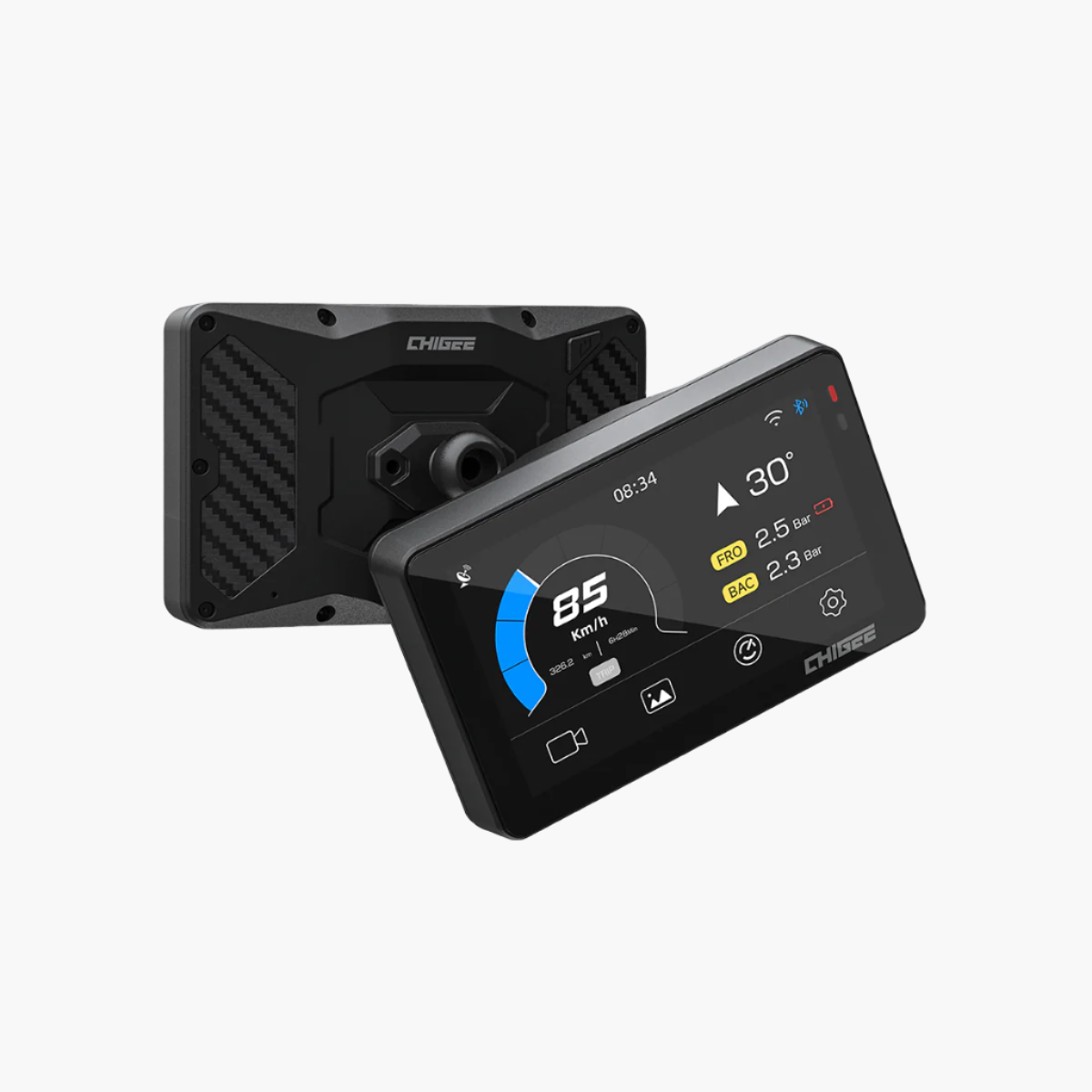
The AIO-5 offers limited display customization because it primarily mirrors your phone. However, you can adjust:
Brightness:
- Auto-brightness adjusts based on ambient light (recommended)
- Manual brightness can be set in Display settings
- At night, brightness drops automatically to avoid blinding you
Fusion Mode (AIO-5 Lite & AIO-6):
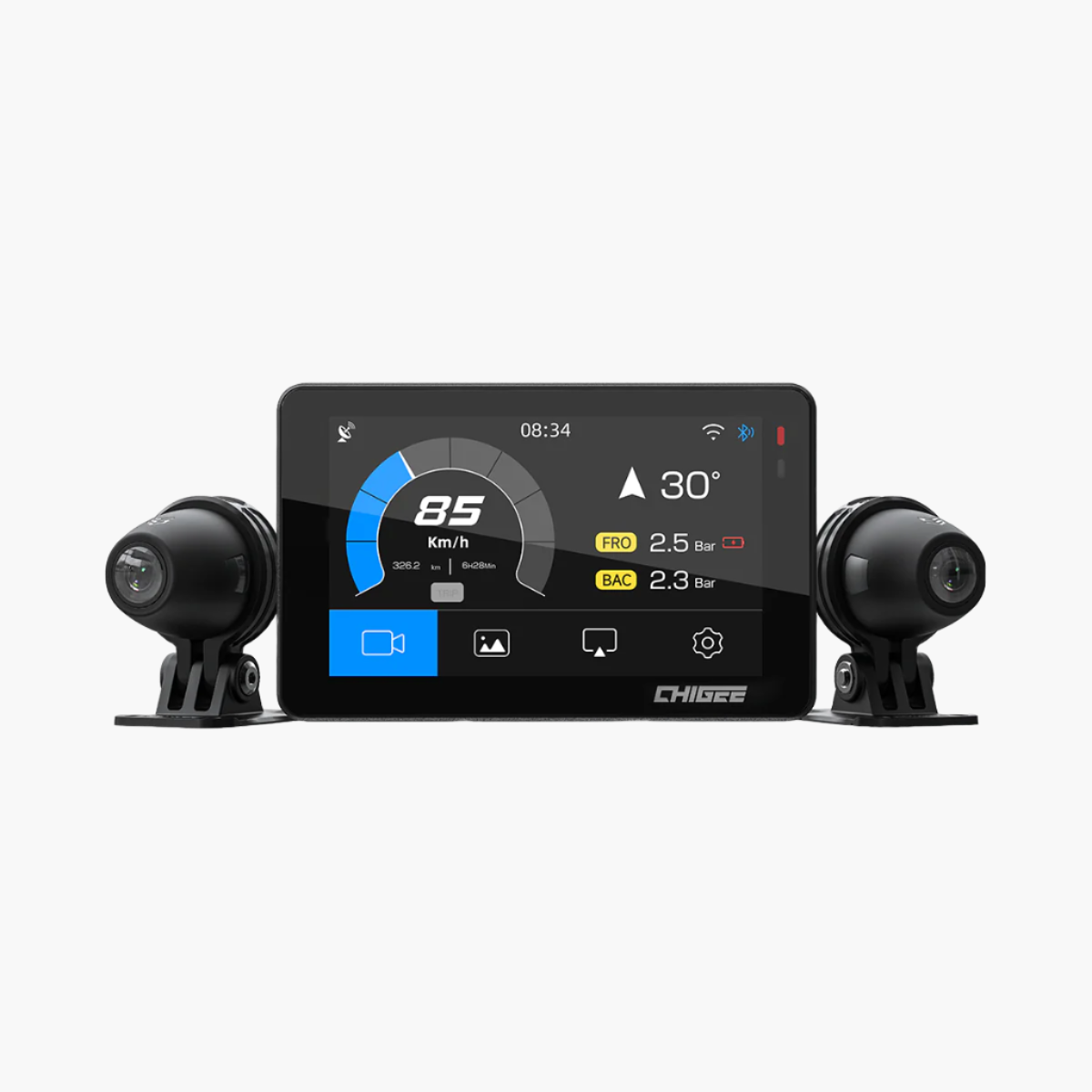
Fusion Mode splits the screen into multiple panes showing:
- Navigation (main pane)
- Dashcam feed (front/rear camera)
- Speedometer and tire pressure
- Trip statistics
How to Enable:
- Open Car Link on the AIO-5
- Go to Settings
- Toggle Fusion Mode to "On"
- Connect CarPlay or Android Auto
Tip: Fusion Mode adds slightly more battery drain when dashcam recording is active. Drop brightness one notch to compensate if running on battery power.
Accessory Integration
If you've added optional accessories, configure them for optimal performance:
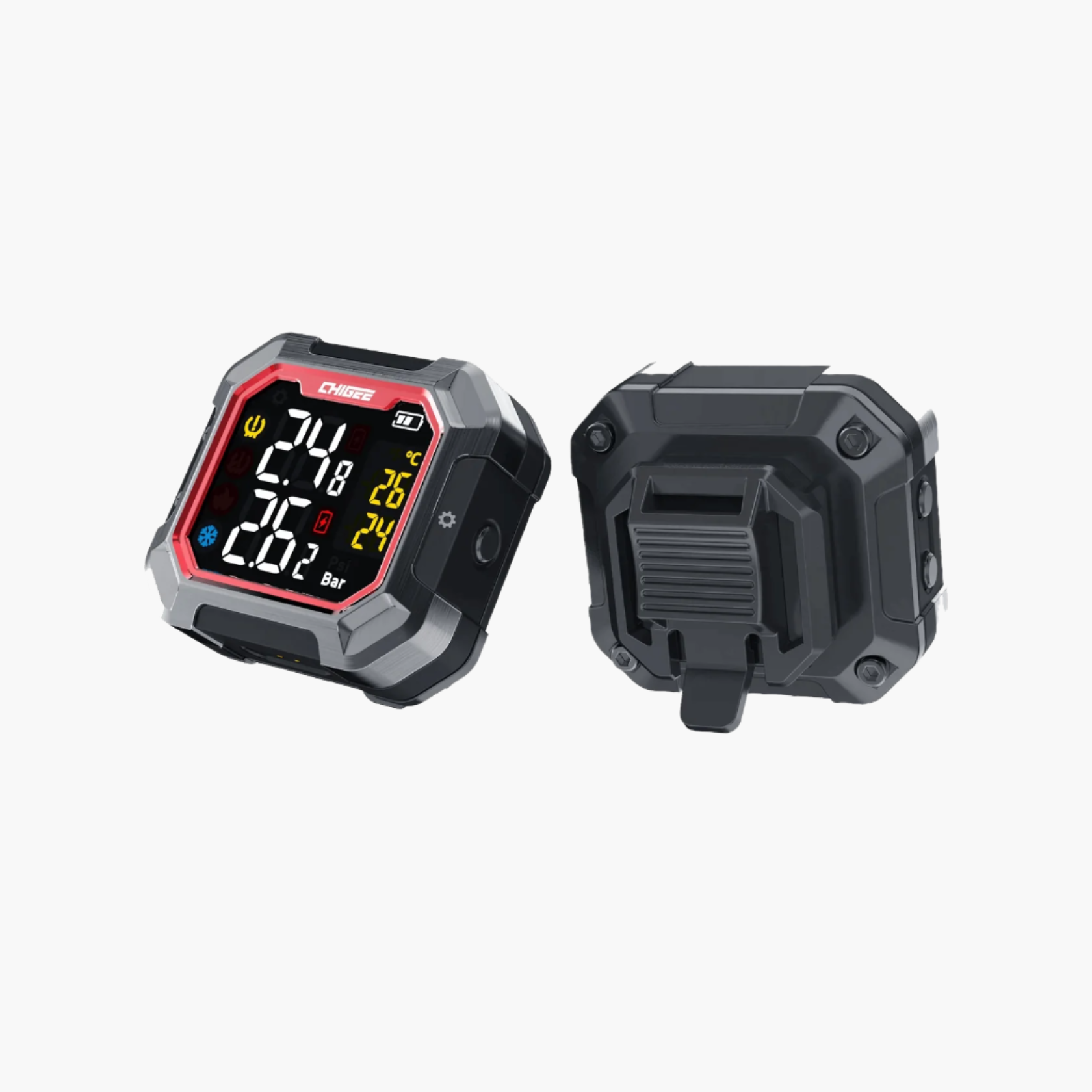
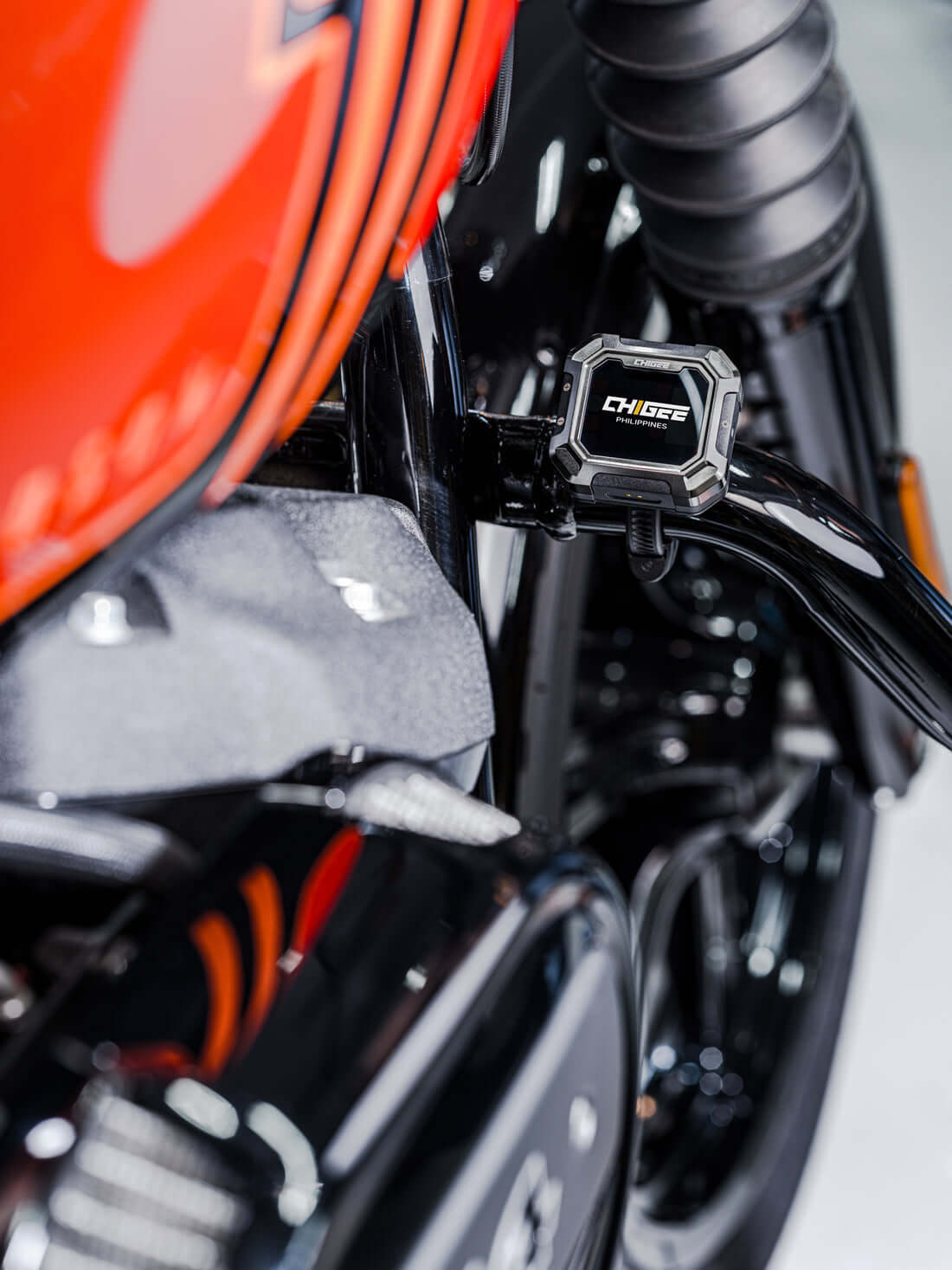
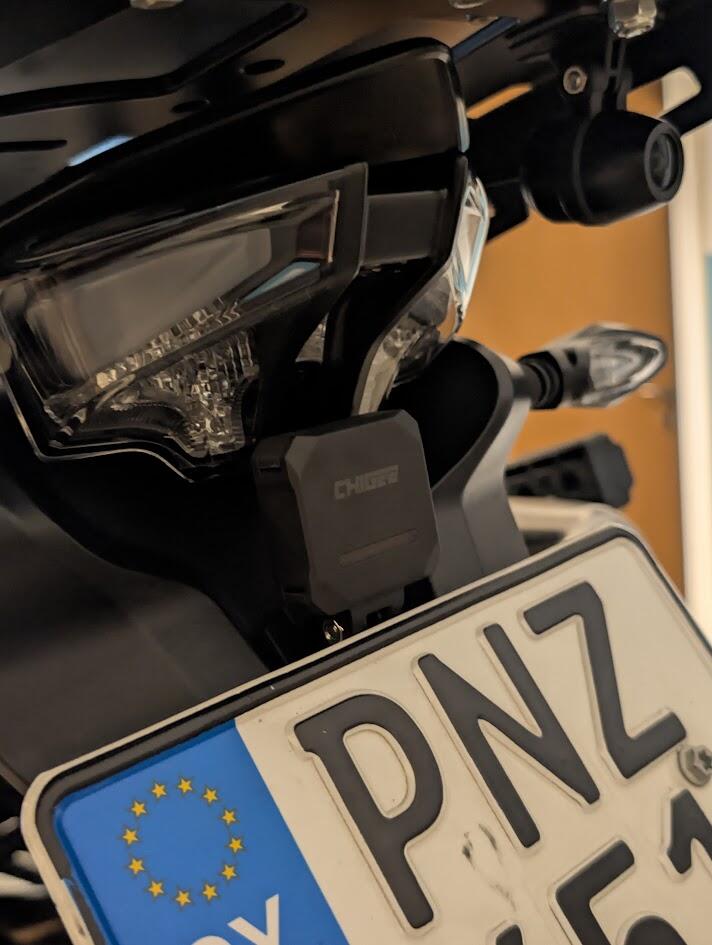
- Set custom alert thresholds for front and rear tires
- High pressure alarm: 20-25% over normal tire pressure
- Low pressure alarm: 10% below normal tire pressure
- Check your bike's manual for recommended pressures
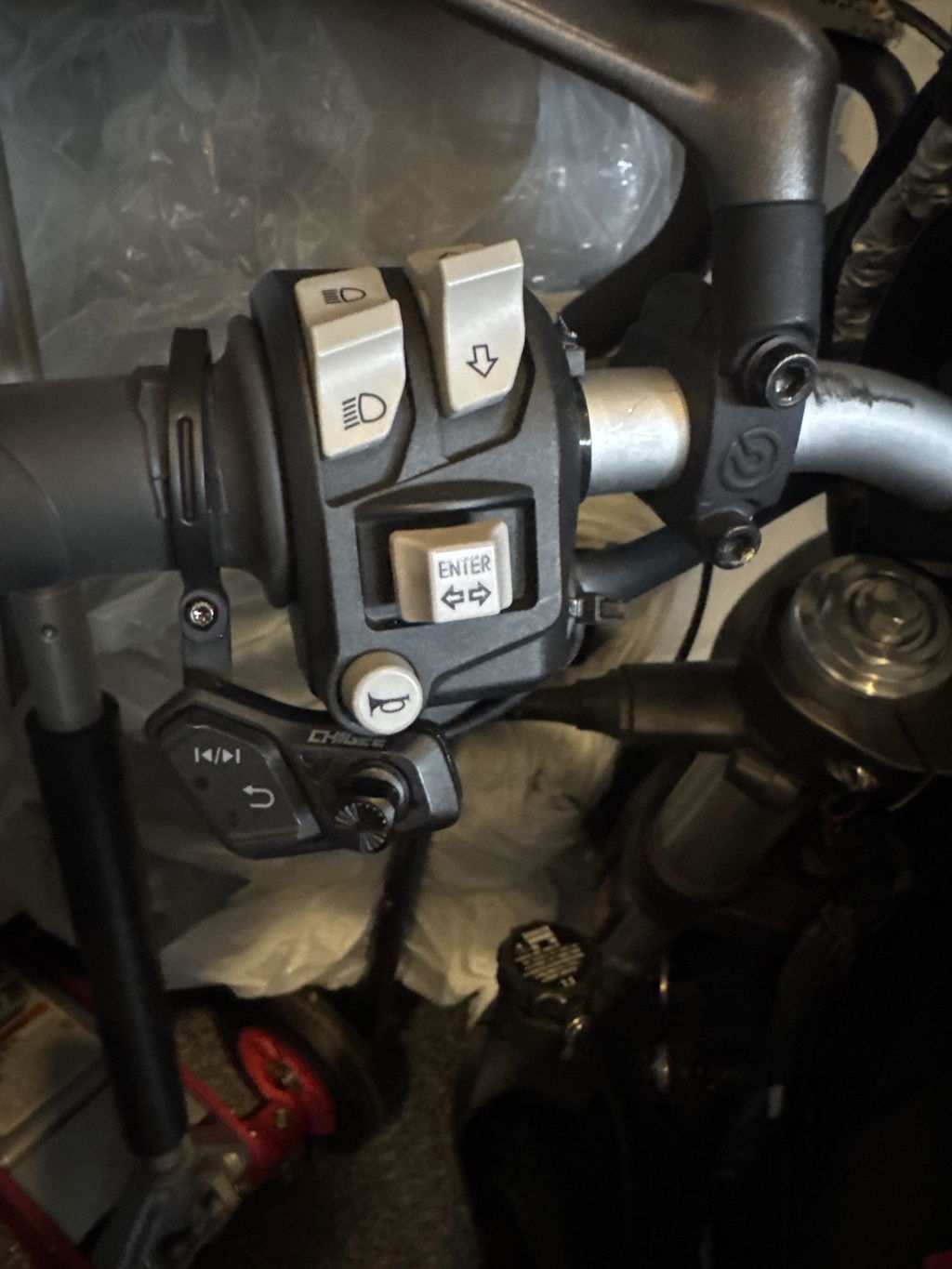
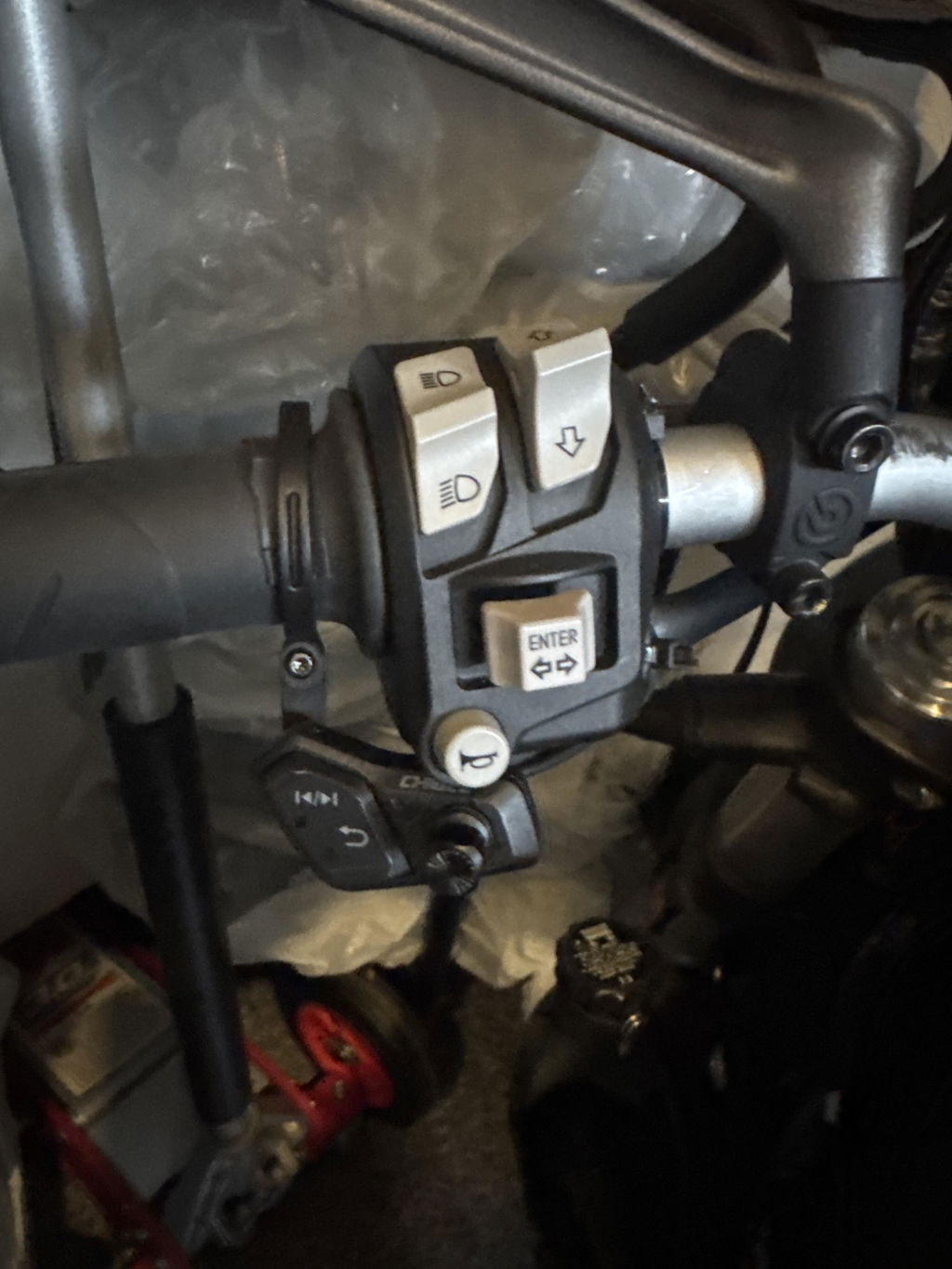
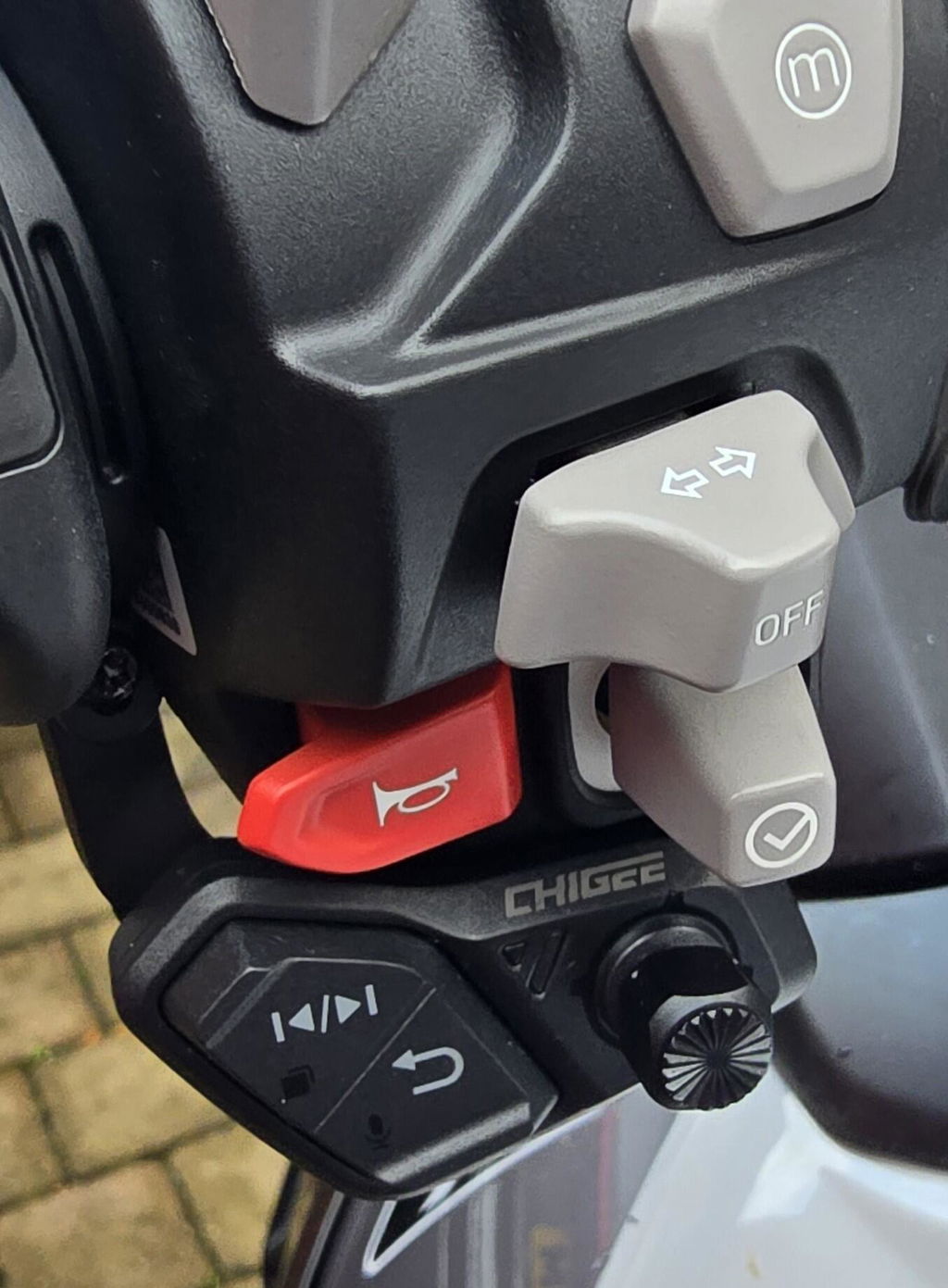
- Pair via 2.4GHz wireless (not Bluetooth, so no conflicts)
- Assign button functions in Settings > Features > RC
- Test all buttons with gloves before riding
BMW Wonder Wheel (AIO-5 Play for BMW):
- Enable vertical scrolling mode in Settings > Features > RC
- Practice switching control between TFT and NAV modes (long-press Menu button)
- Customize scroll direction to match BMW's native feel
Ready to upgrade or add accessories?
Explore the AIO-5 Series Collection →
Join the Chigee Facebook Group to share your setup and get tips from other riders using Chigee displays.








2 comments
Staffan
Lassen sich auch 2 oder mehrere Smartphones mit dem AIO-5 Play für BMW verbinden?
José Luis Arteaga Hilario
Hola , tengo una duda con la pantalla de configuración del dispositivo chigge aio 5 lite, los ajustes me salen en formato lista no en iconos y no sé si me han vendido un dispositivo muy antiguo porque lo he actualizado a la ultima versión de fimware 3.6.4. y no sale la forma de cambiar de lista a iconos , espero contestación gracias.
Leave a comment
All comments are moderated before being published.
This site is protected by hCaptcha and the hCaptcha Privacy Policy and Terms of Service apply.