


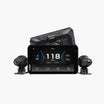
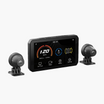
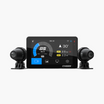

On a 30-minute ride, you tap through four apps nearly a dozen times.
Riding solo or in a pack, you don't want to fumble between your dashcam, maps, music, or tire-pressure readout.
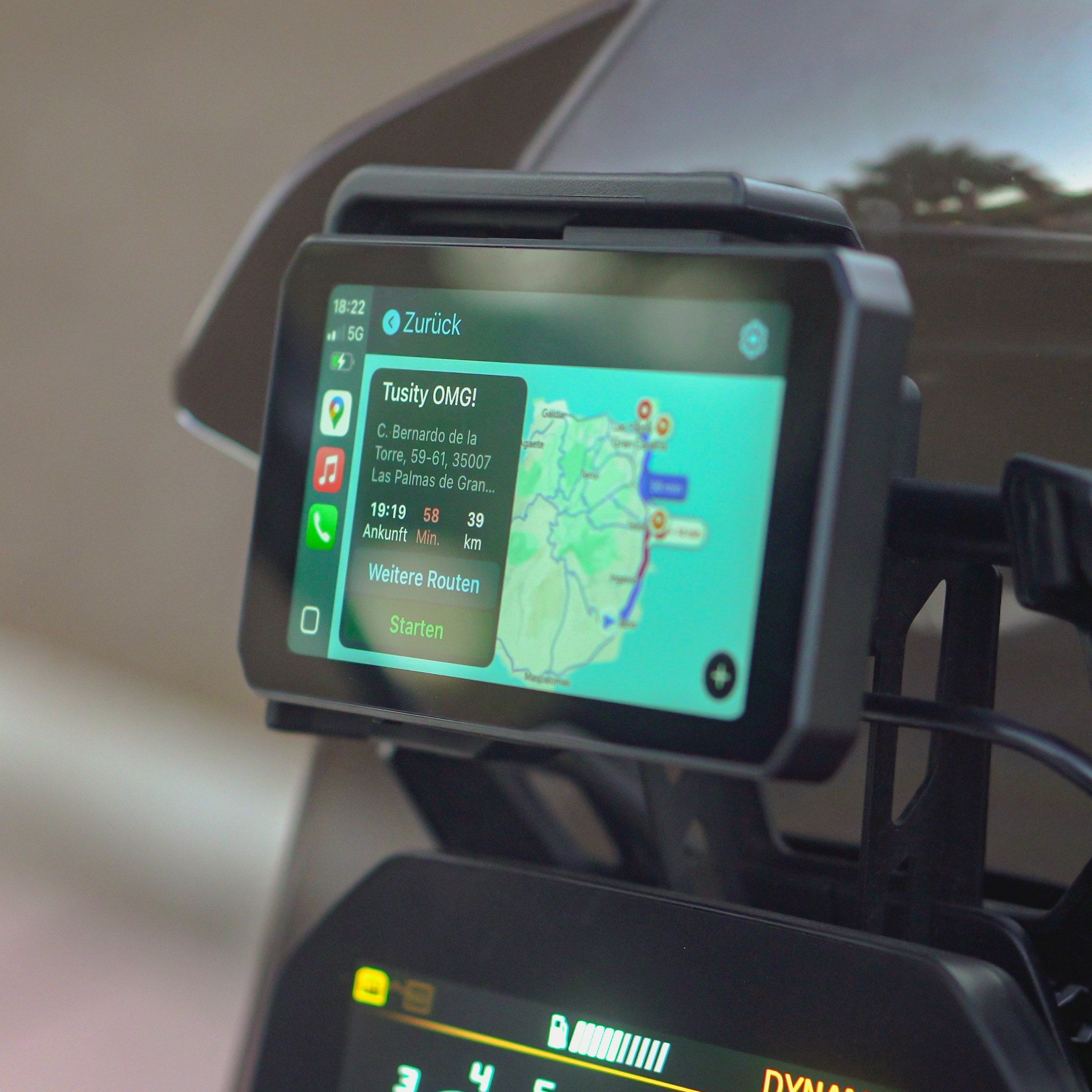
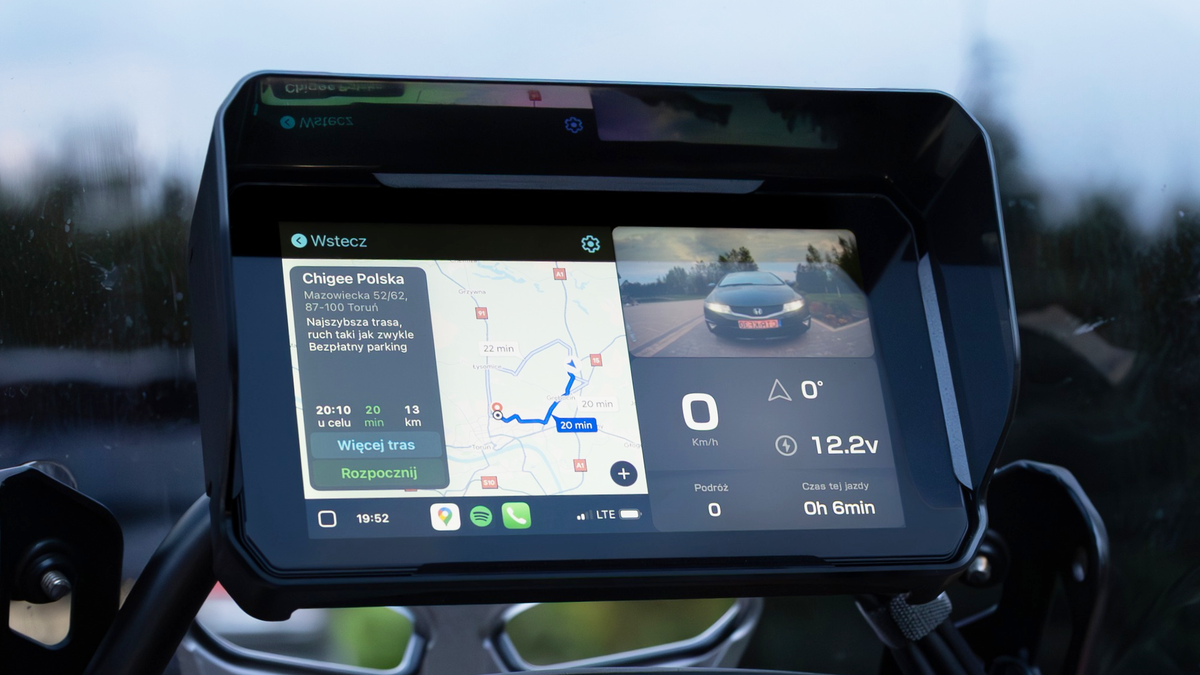
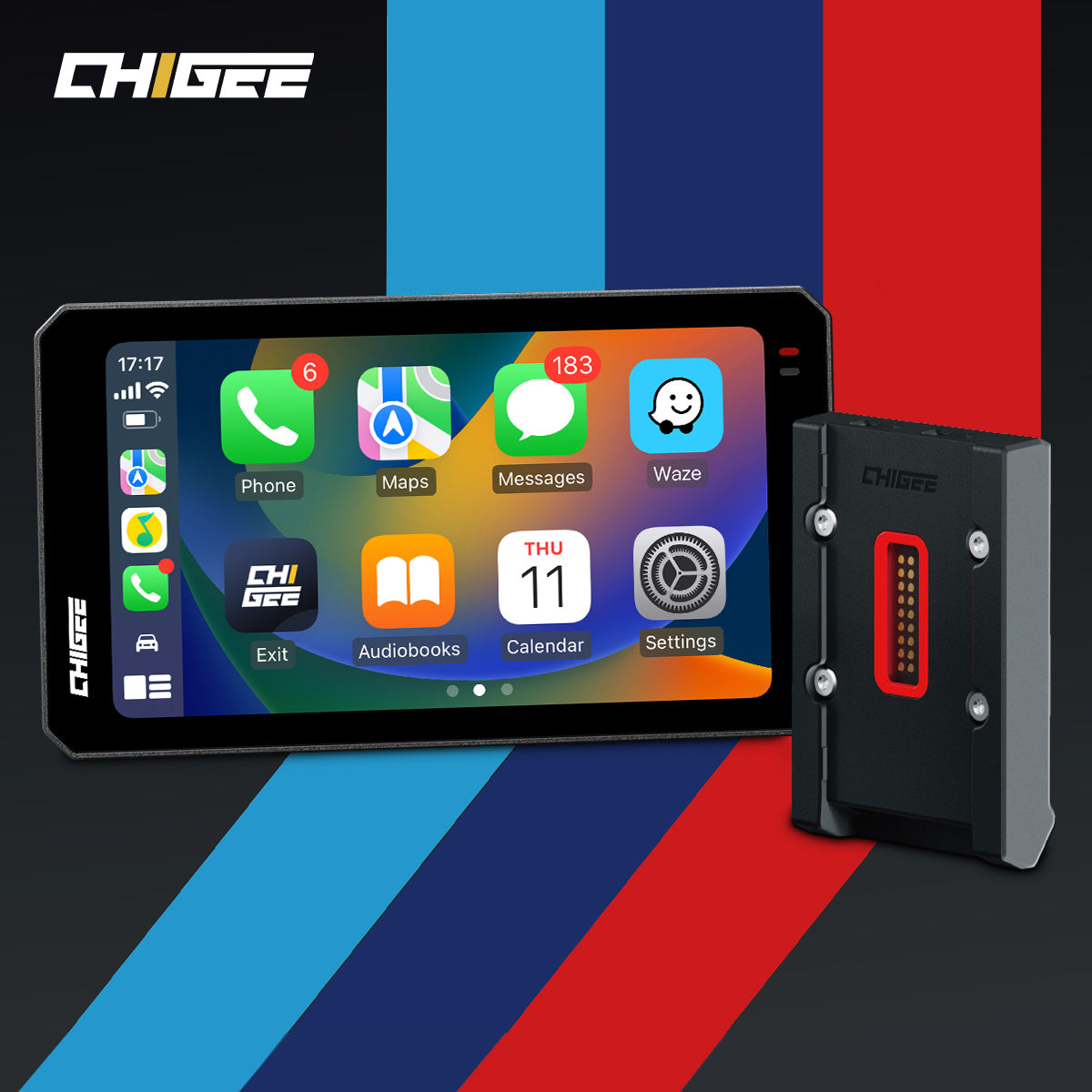
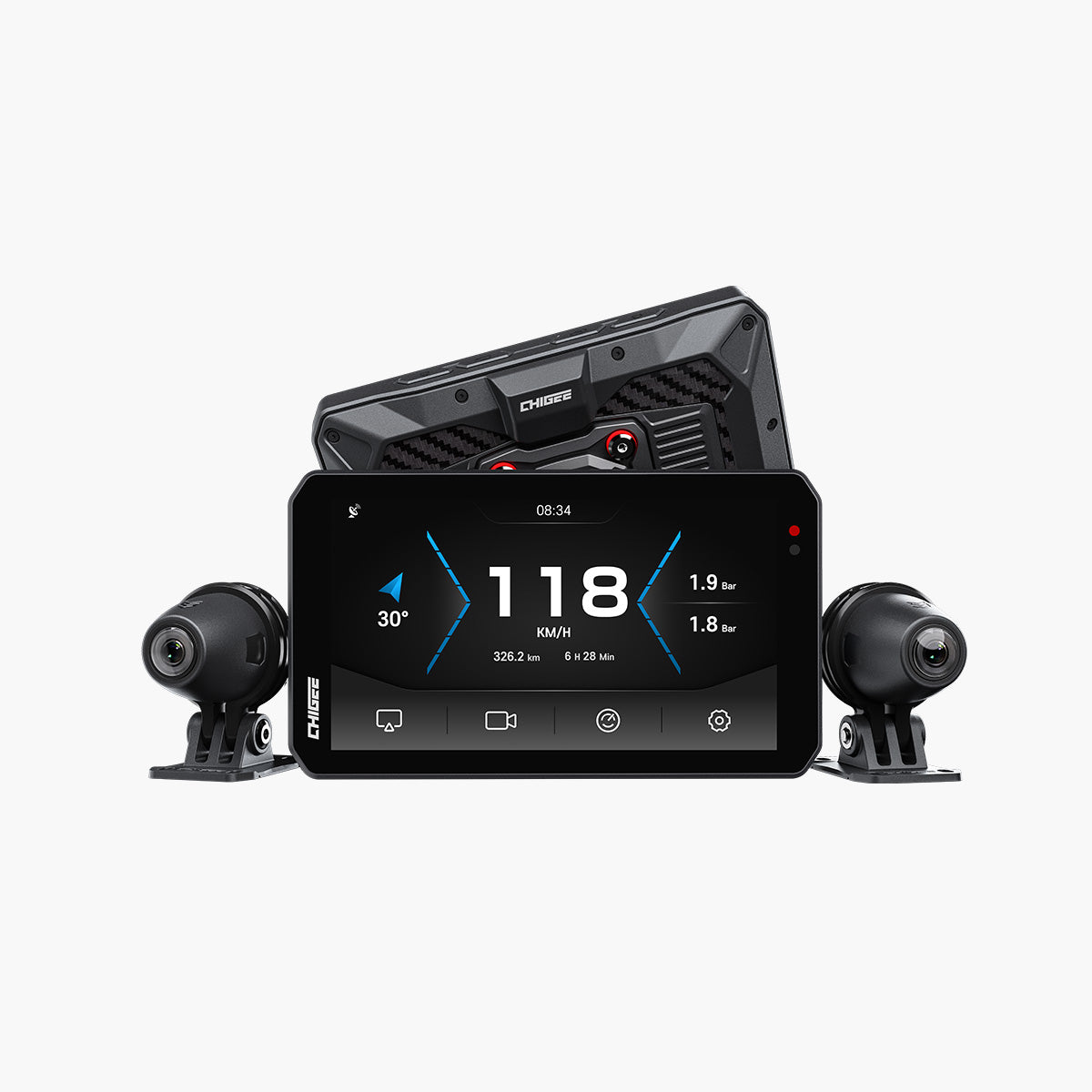
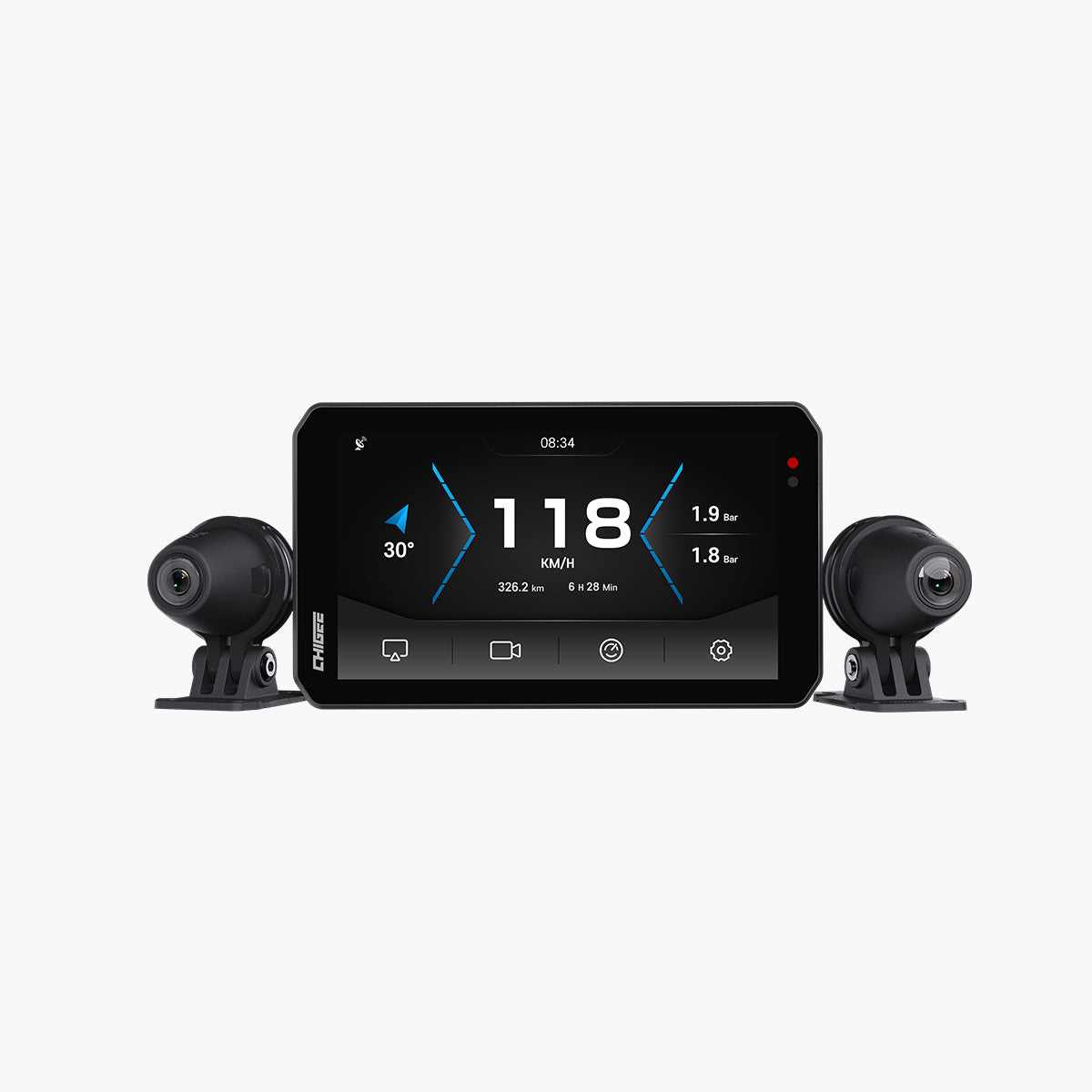
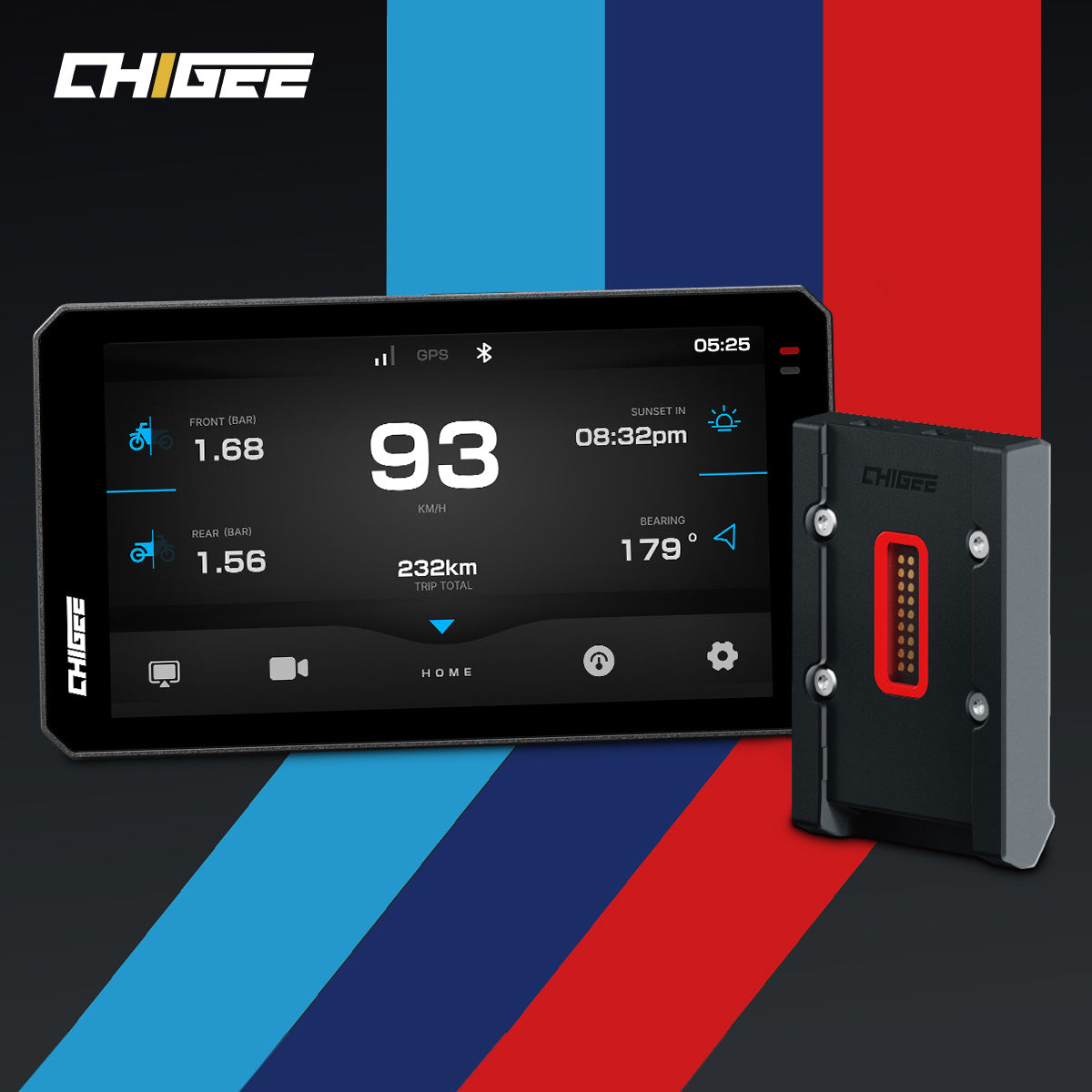
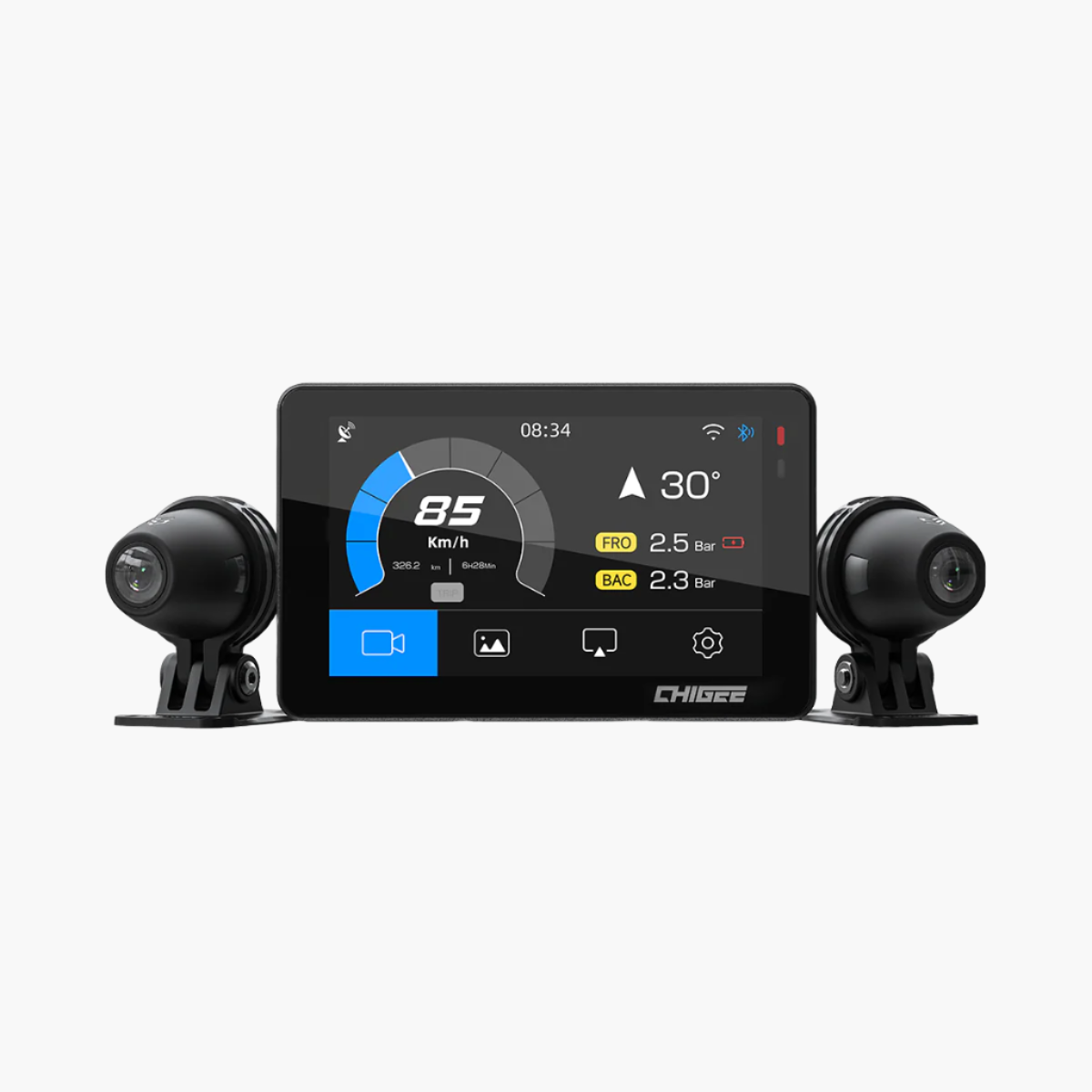
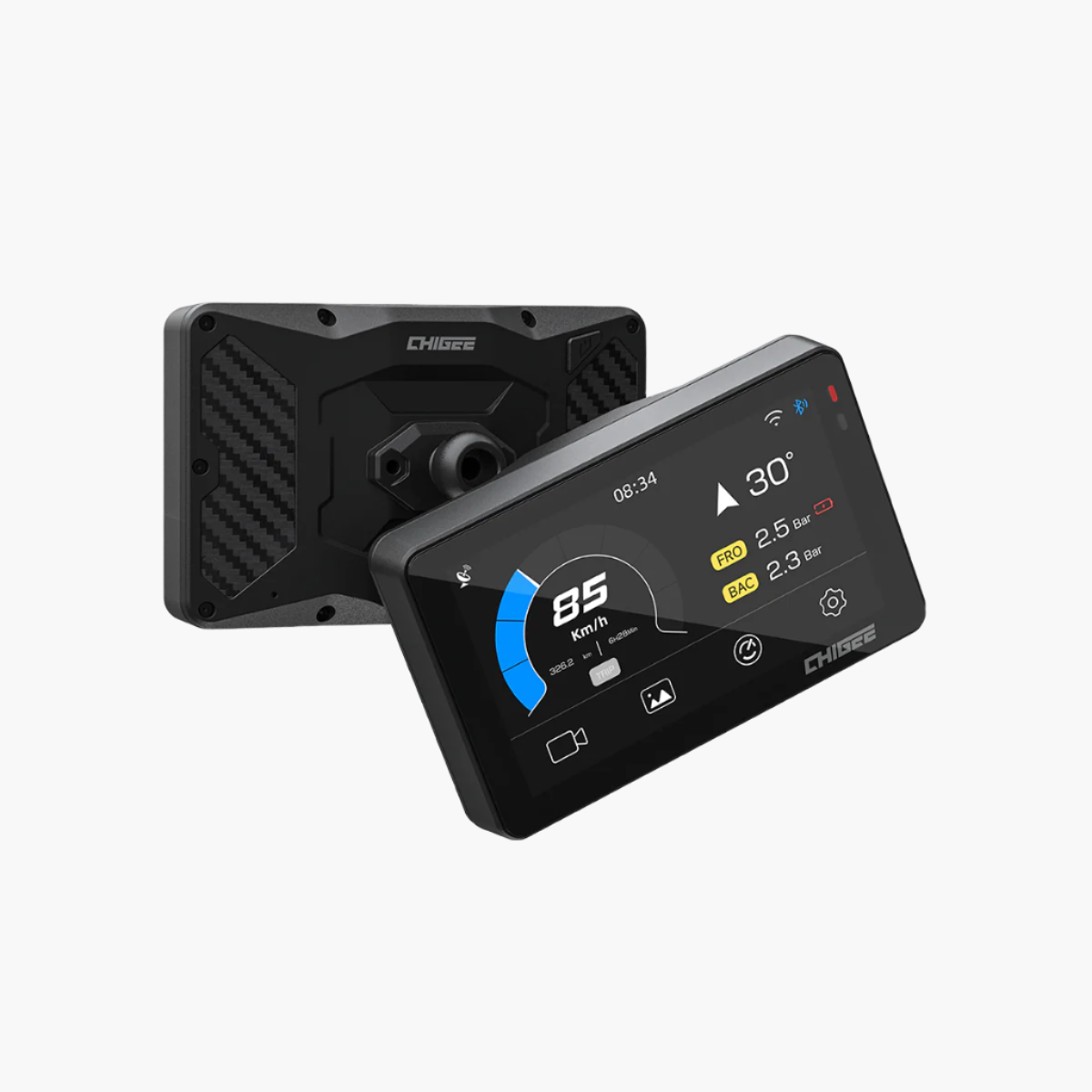
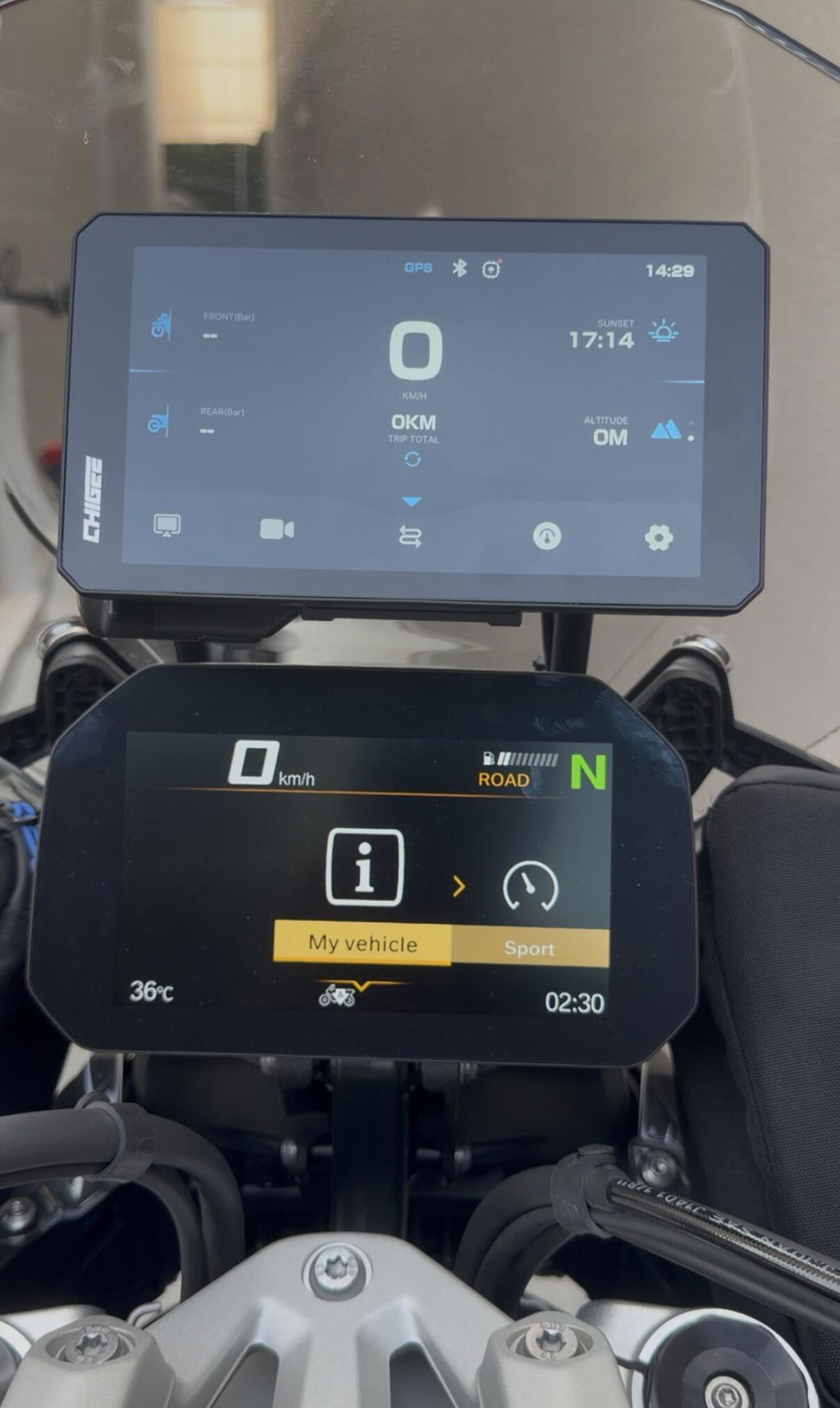
Chigee Fusion Mode on the CHIGEE display puts them all on one screen.
*Please note that currently only the AIO-5 Lite and AIO-6 series support Fusion Mode. Other models are still being updated gradually, so please stay tuned to updates in our Facebook group.
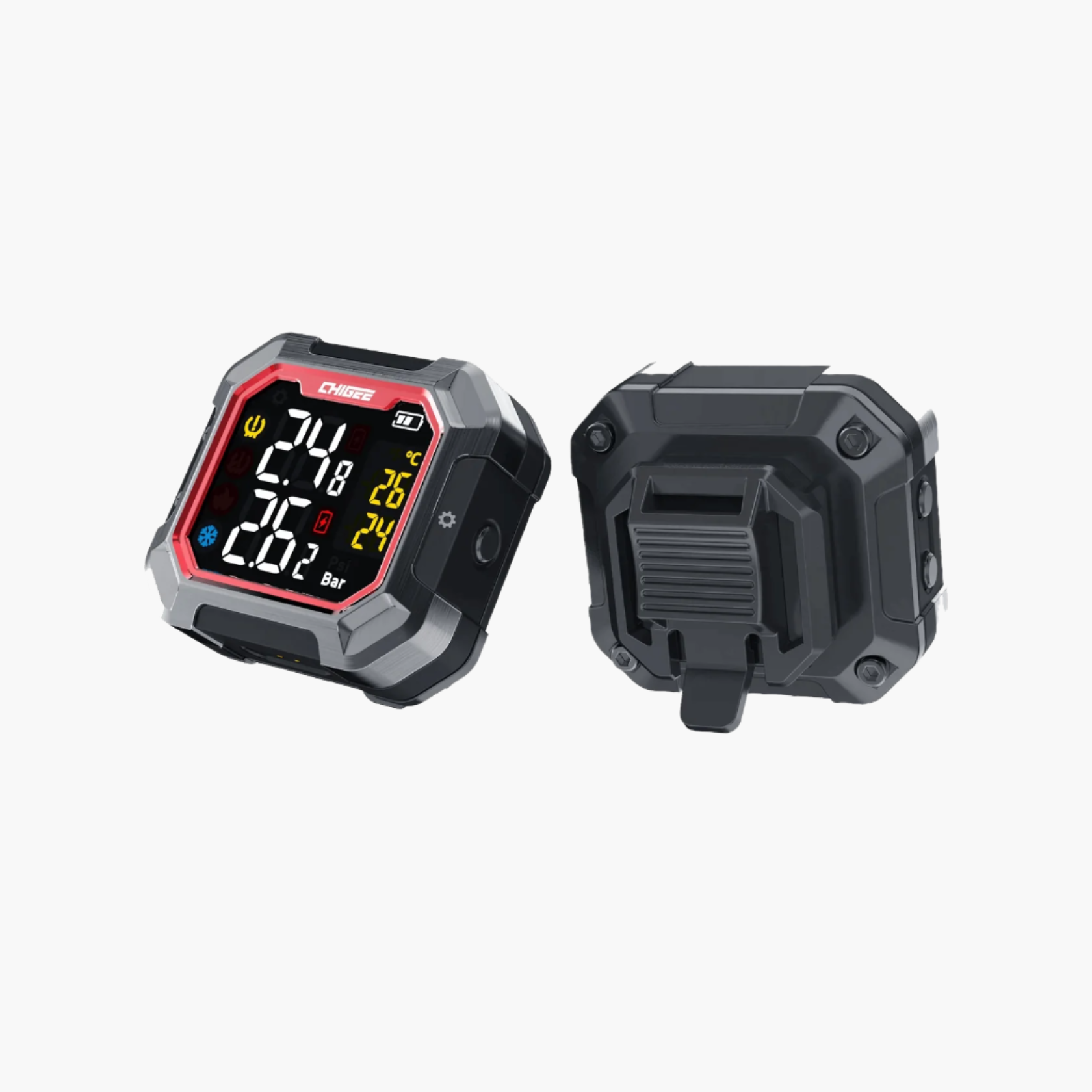
In just five taps, you'll have live camera feed, turn-by-turn directions, media controls, and even TPMS data displayed together, so you spend less time hunting menus and more time watching the road.
What You'll Need?
- CHIGEE display with the latest firmware
- CHIGEE GO smartphone app (latest on iOS/Android)
- Bluetooth for wireless CarPlay/Android Auto
- Paired dashcam & TPMS sensors in CHIGEE GO
If you haven't paired your dashcam or sensors yet, open CHIGEE GO, go to Devices, and follow the on-screen prompts. Once that's done, you're ready for Fusion Mode.
Step 1: Wake up your AIO-5 Lite Device

Turn your bike's ignition on (or press the power button). Give the display a second to boot. When you see the home screen, you're ready to connect.
Step 2: Open Car Link

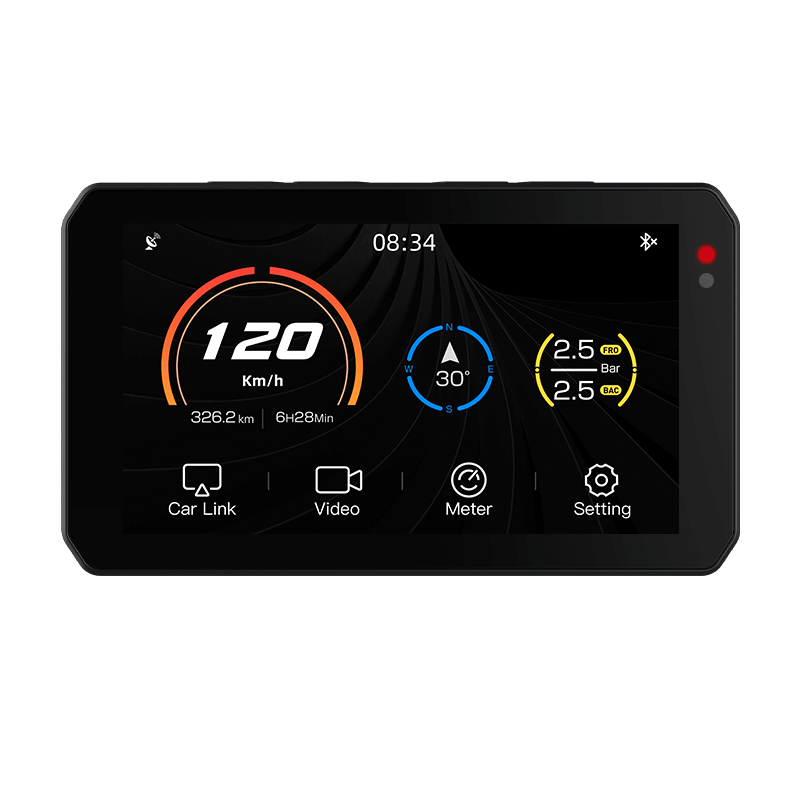
Tap the chain-link icon. Car Link is where the CHIGEE display manages connections to your phone, camera, and sensors.
Step 3: Turn on the Fusion Mode

Inside Car Link, tap Settings, where you'll find the Fusion Mode, tap on it to turn it "On".
Step 4: Connect Android Auto or CarPlay

- Turn on the Bluetooth and connect your mobile phone to your Smart CHIGEE display.
- Select CarPlay or Android Auto on the screen.
- Give any permission pop-ups a quick thumbs-up on your phone.
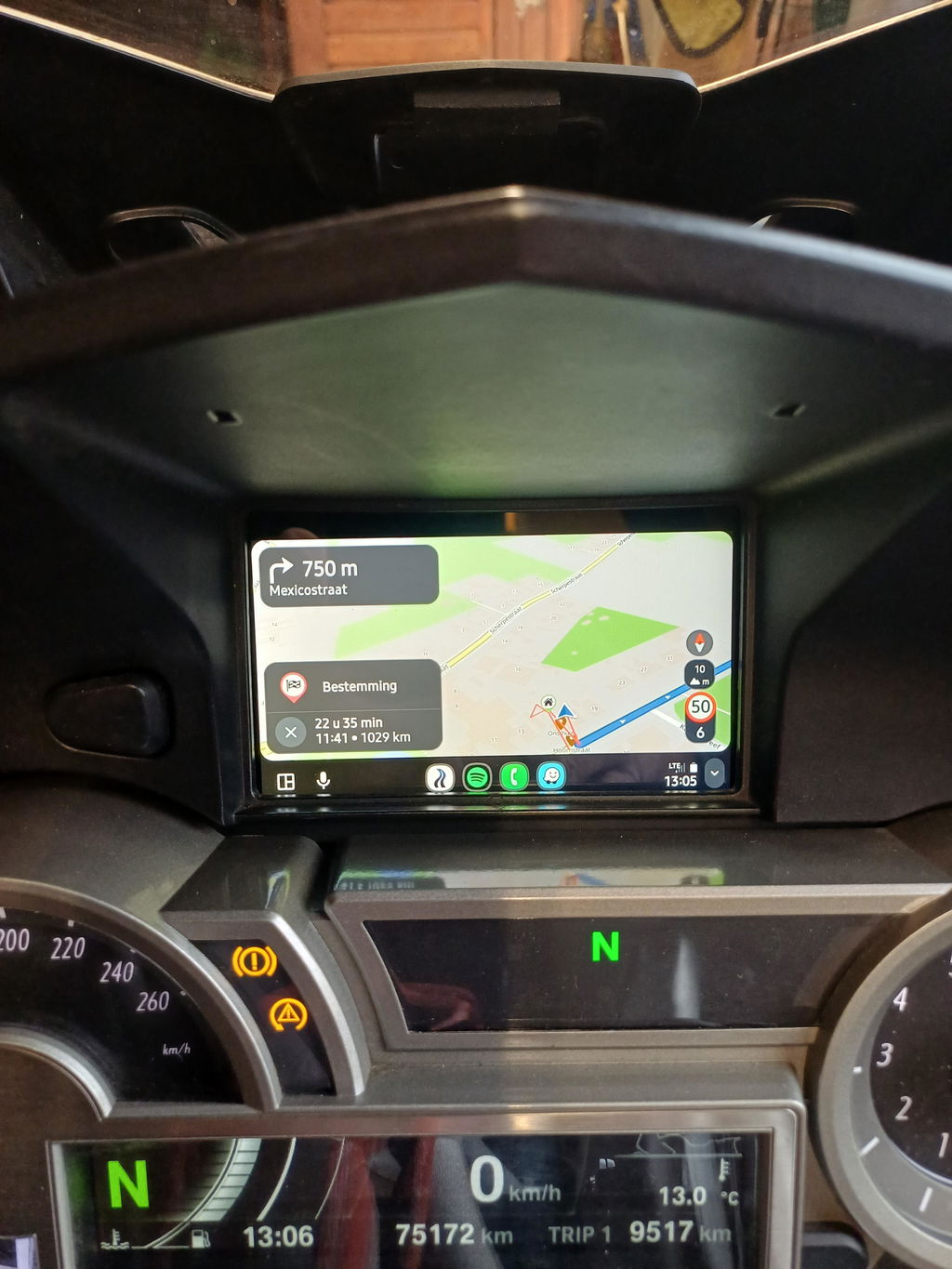
Once it connects, your CHIGEE display will split into 6 quadrants.
Step 5: Enjoy Fusion Mode

You're live. By default, you'll see:
-
Top-Left: GPS map (Google Maps, Waze, etc.)
-
Top-Right: Front dashcam live feed
-
Bottom-Left: Ambient temperature (tap to swap with other data)
-
Center-Bottom: Media widget (track name, play/pause, skip)
-
Bottom Bar: Shortcut icons for Settings, Phone, SoundCloud, Maps, and Voice Assistant
- Right-Pane Vertical: Speedometer, Front/Rear tyre pressures, Today’s distance, and Ride time.
Customize Your Layout
-
Swap Data in the Right Panel
-
Tap front-tyre pressure (21 psi) to swap with direction & altitude.
-
Tap rear-tyre pressure (17 psi) to swap with battery voltage.
-
Expand Left-Side Apps
-
On the left 60% of the screen, tap the app icon (e.g., Maps, Music, Weather).
- Tap again to fill the entire left half for a bigger view.
How Fusion Mode Makes Riding Easier?
Fewer Menu Jumps
Every second you spend swapping apps is a second your eyes are off the road. Fusion Mode cuts those swaps to zero.
Instant Alerts
If your tire pressure dips or the dashcam spots something odd behind you, you see it alongside your map, no surprises.
Hands-Free Switching
Thanks to Android Auto/CarPlay integration, you can say "Hey Siri, switch to music" or "OK Google, open camera," and the CHIGEE display slides that pane right into view.
Expert Advice from Real Riders
- Voice-First Commands: Once CarPlay/Android Auto is up, use your phone's assistant to move panes without touching the screen.
- Brightness vs. Battery: If you're on battery power, drop the screen brightness one notch—Fusion Mode adds just a bit more drain when the dashcam is recording.
Troubleshooting
- Can't Enable Fusion? Make sure your firmware is the latest: Settings → System → Update.
- Phone Won't Pair: Toggle Bluetooth off/on, and accept the CarPlay/Android Auto prompt on your phone. If your phone still does not pair with the Chigee system. Try enabling 2.4G AP and connect.
Keeping Things Running Smoothly
- Weekly Firmware Check: New Car Link fixes drop every couple weeks. Tap Settings → System → Update before you head out for a big ride.
-
Clean the Screen: Use a soft microfiber cloth—no spray cleaners—that preserves touch sensitivity.
- Offload Video Footage: Every 50 km or so, plug in your phone or laptop and transfer dashcam clips to free up space.
In Closing
Fusion Mode isn't a special feature; it's just a smarter way to see everything you need at a glance. Flip it on, and let your AIO-5 Lite keep all the important data where it belongs: right in front of you, all at once.
Give it a try on your next ride. Connect, tap Fusion Mode, and feel how much more natural it is to ride without hunting menus. Feel free to share your favorite layout in the comments: city commutes, cross-country touring, or track laps. Happy riding.






2 comments
Jos
Ik zou zelf liever willen bepalen of ik die technische gegevens kon verwisselen en inplaats daarvan voor en achter camera in een apart scherm te hebben.
Bijvoorbeeld bij de BMW zijn die gegevens op hun eigen display toegankelijk dat is daar veel makkelijker voor. Dan zouden de knoppen voor de muziek en navigatie groter kunnen voor de muziekbediening of navi met handschoen.
Moises aroesti
Tengo el CHIGEE 6 lte 4g pero me gustaría poder desactivar el modo de fusión de la pantalla no la quiero ver dividida como,puedo quitar el,fusión more ya actualice mi equipo y por mas que intento ver mi pantalla completa no puedo
Leave a comment
All comments are moderated before being published.
This site is protected by hCaptcha and the hCaptcha Privacy Policy and Terms of Service apply.