

Brand: BMW
Model: F800 GS 2024
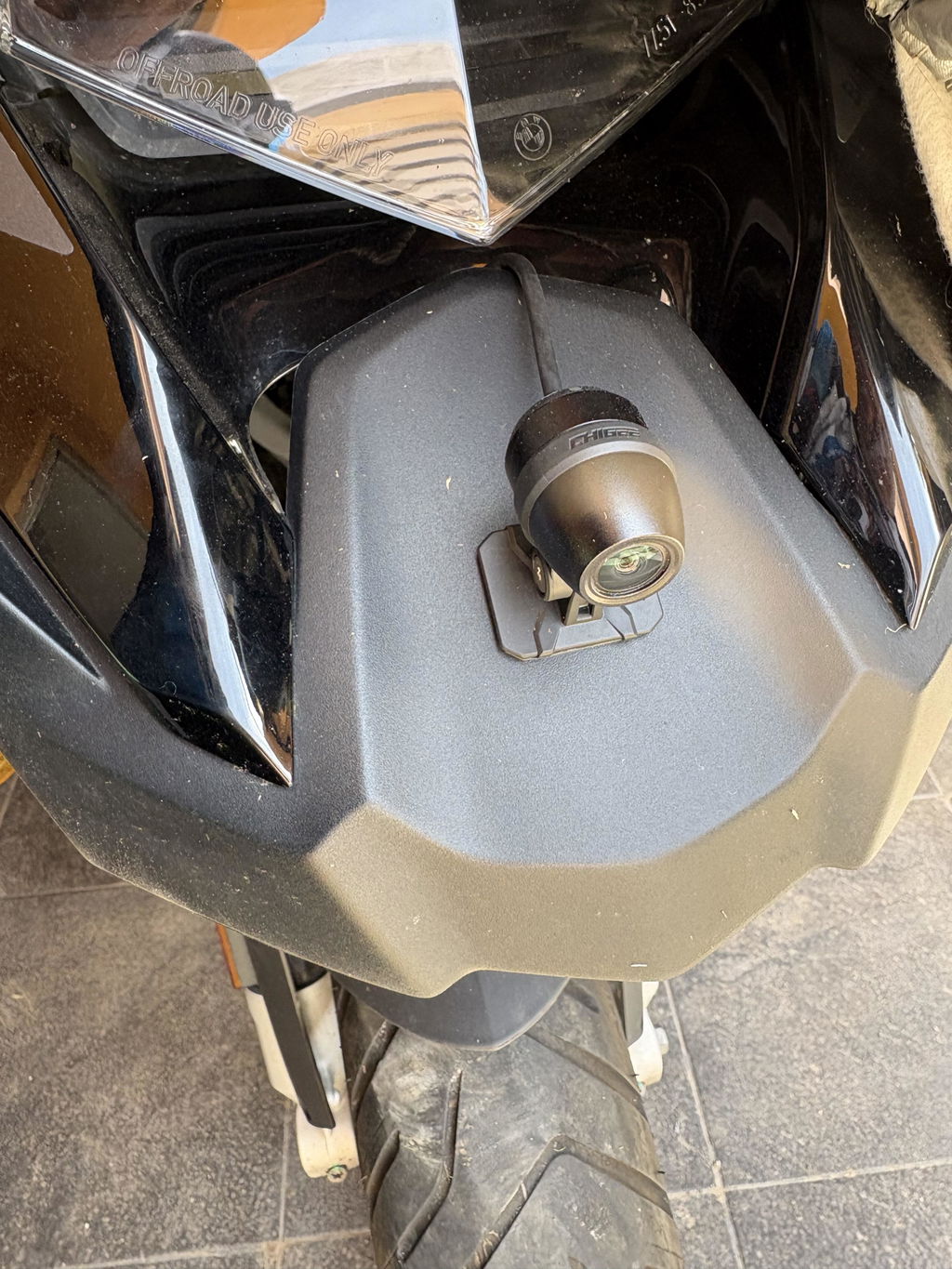
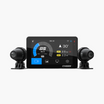
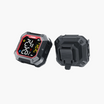
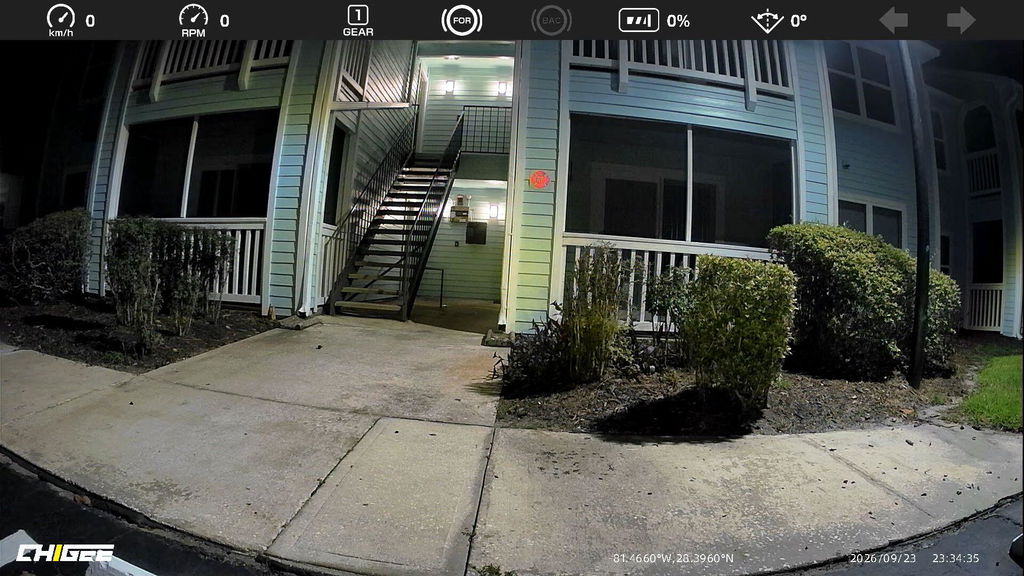
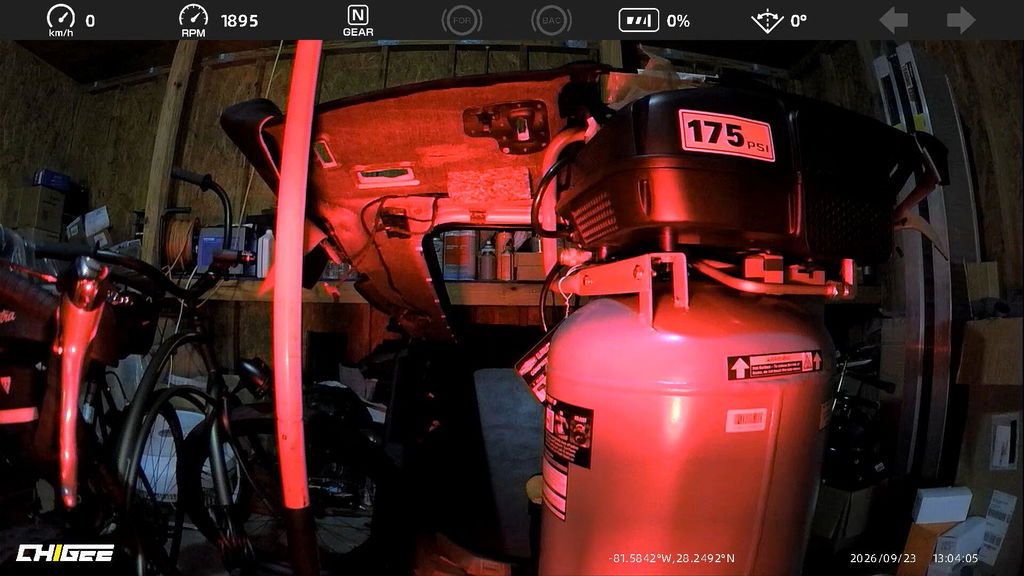
I am very satisfied with the resolution of these Chambers, I use them at night and I have to say that they are simply spectacular, I highly recommend them.
Brand: Yamaha
Model: Star Venture Transcontinental
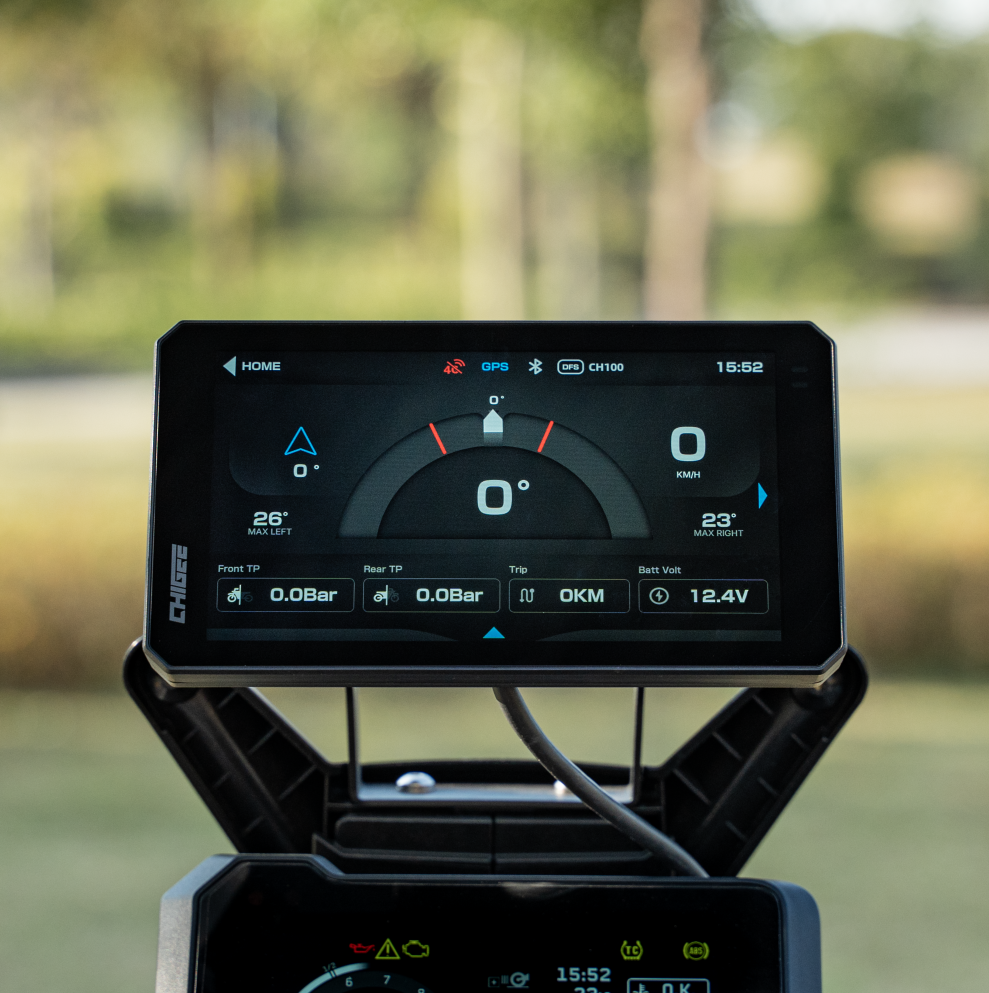
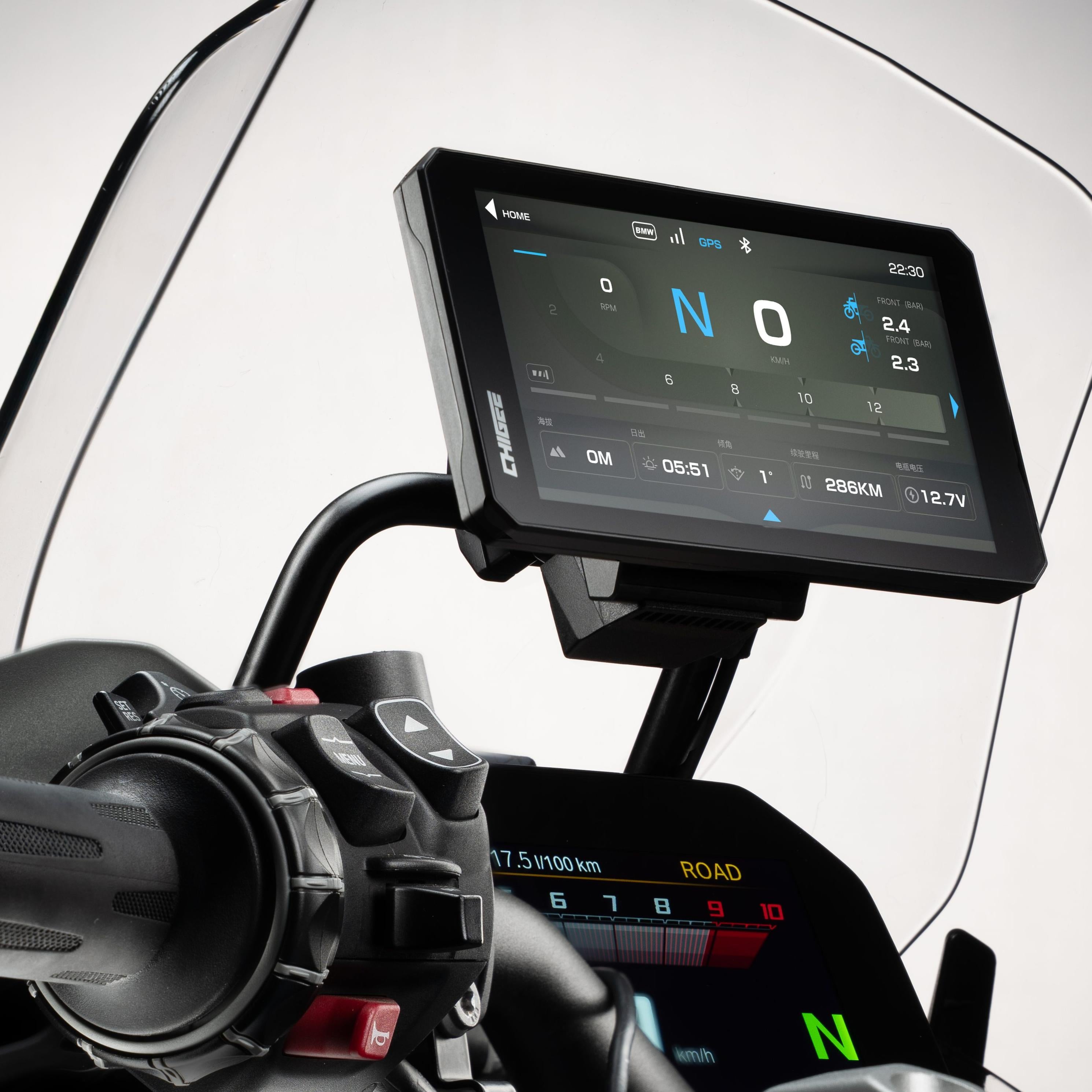
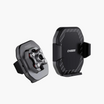
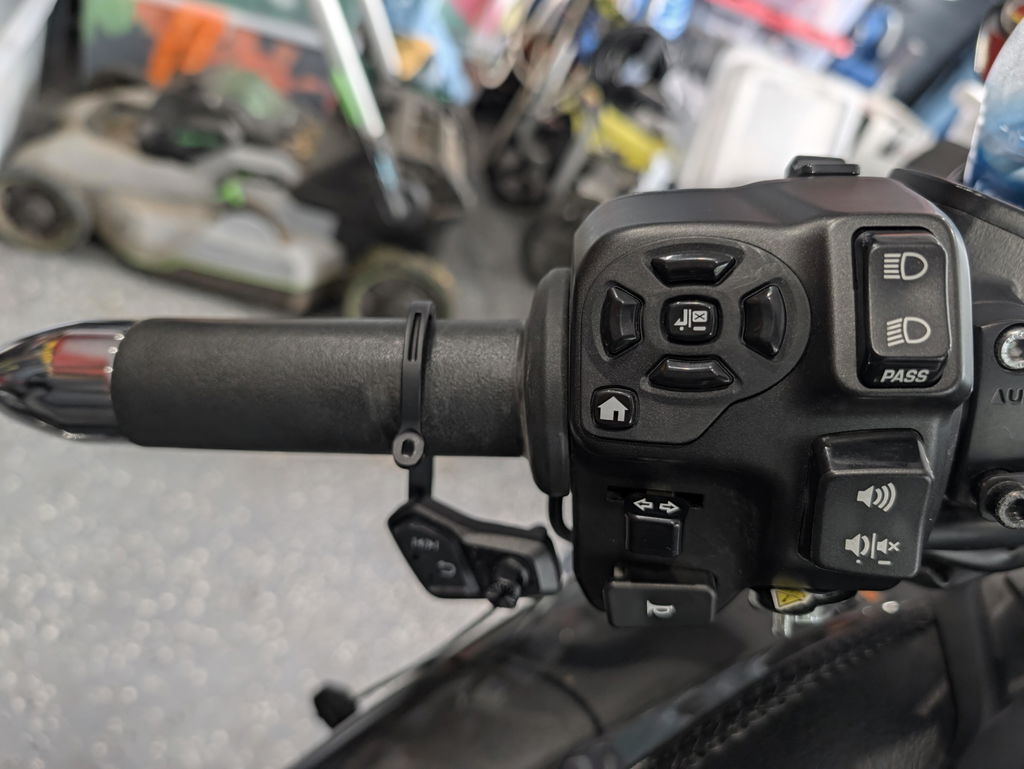
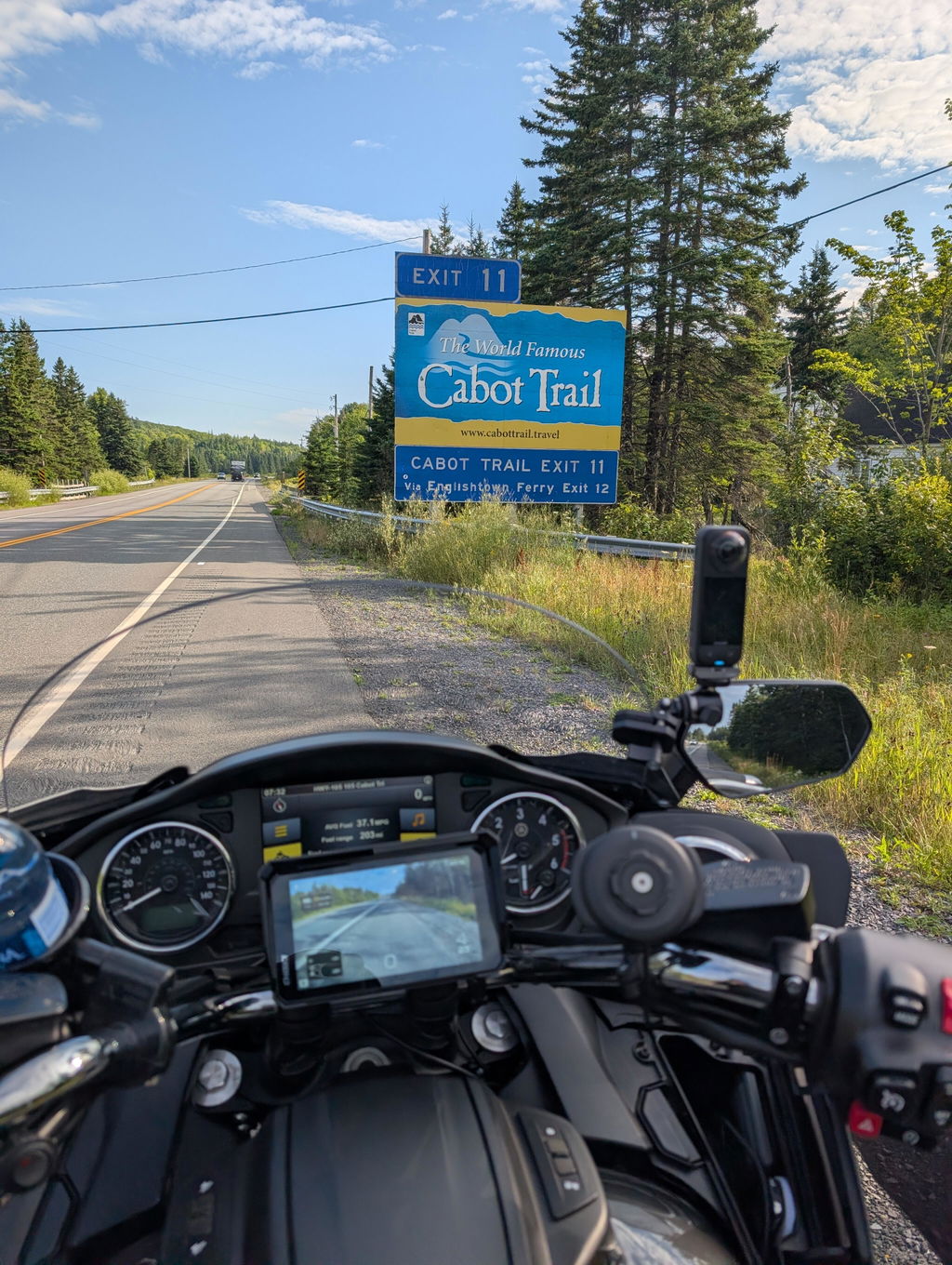
Really like this unit a lot, certainly is better than using your hand or phone to control the unit.
My only request would be that they include more variations of the mount that are longer or extendable.
Very happy with all my Chigee products!
Brand: BMW
Model: K1600gt
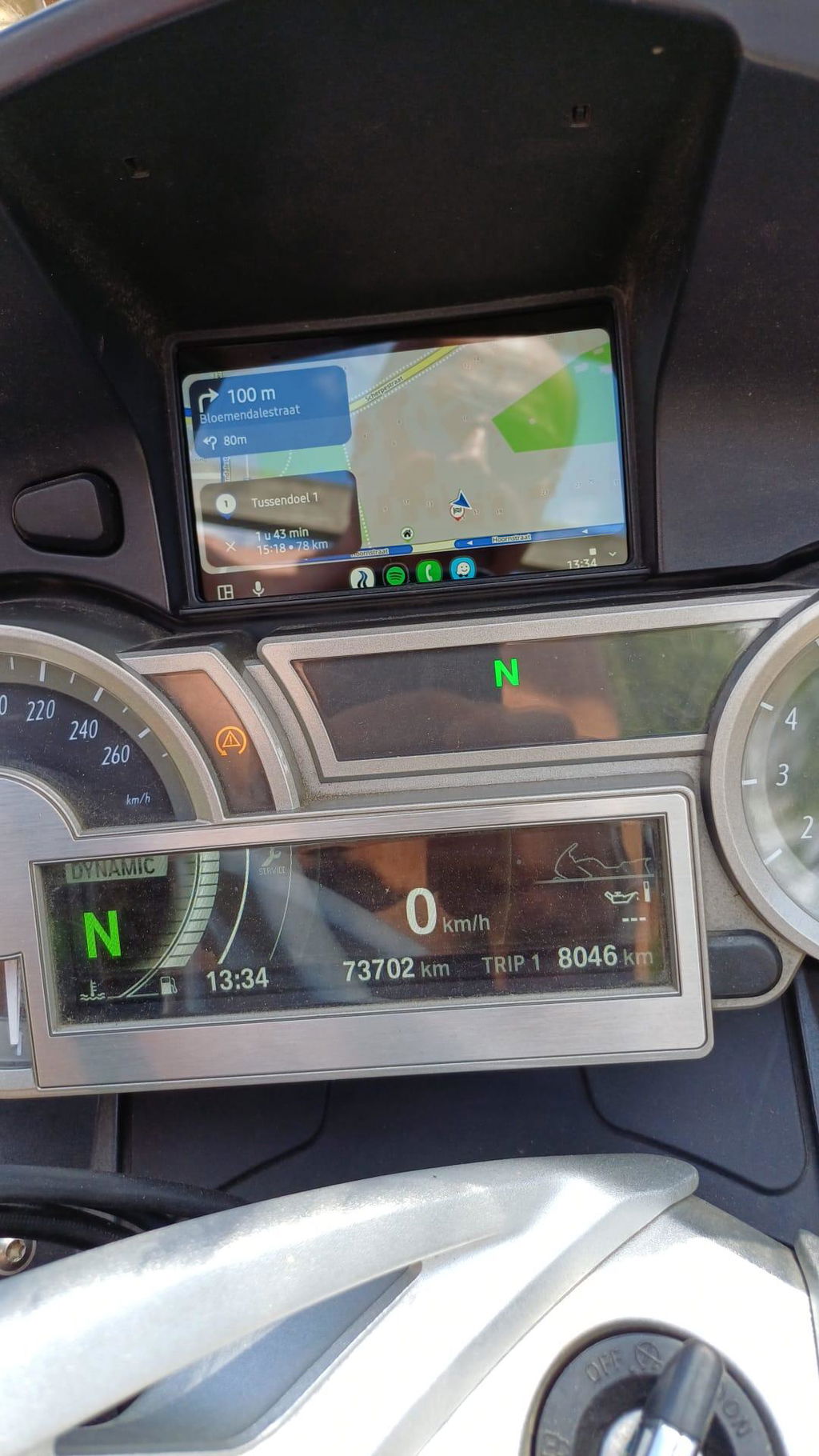
Chigee 5 past perfect in mijn k1600gt bwj 2014 alsook in mijn R 1200 RT bwj 2018. Meer dan waardig alternatief voor de Navigator 5. Werkt perfect via Android auto
Brand: Others
Model: Cf moto mtx800
Skvělý upgrade motorky cf moto mtx800
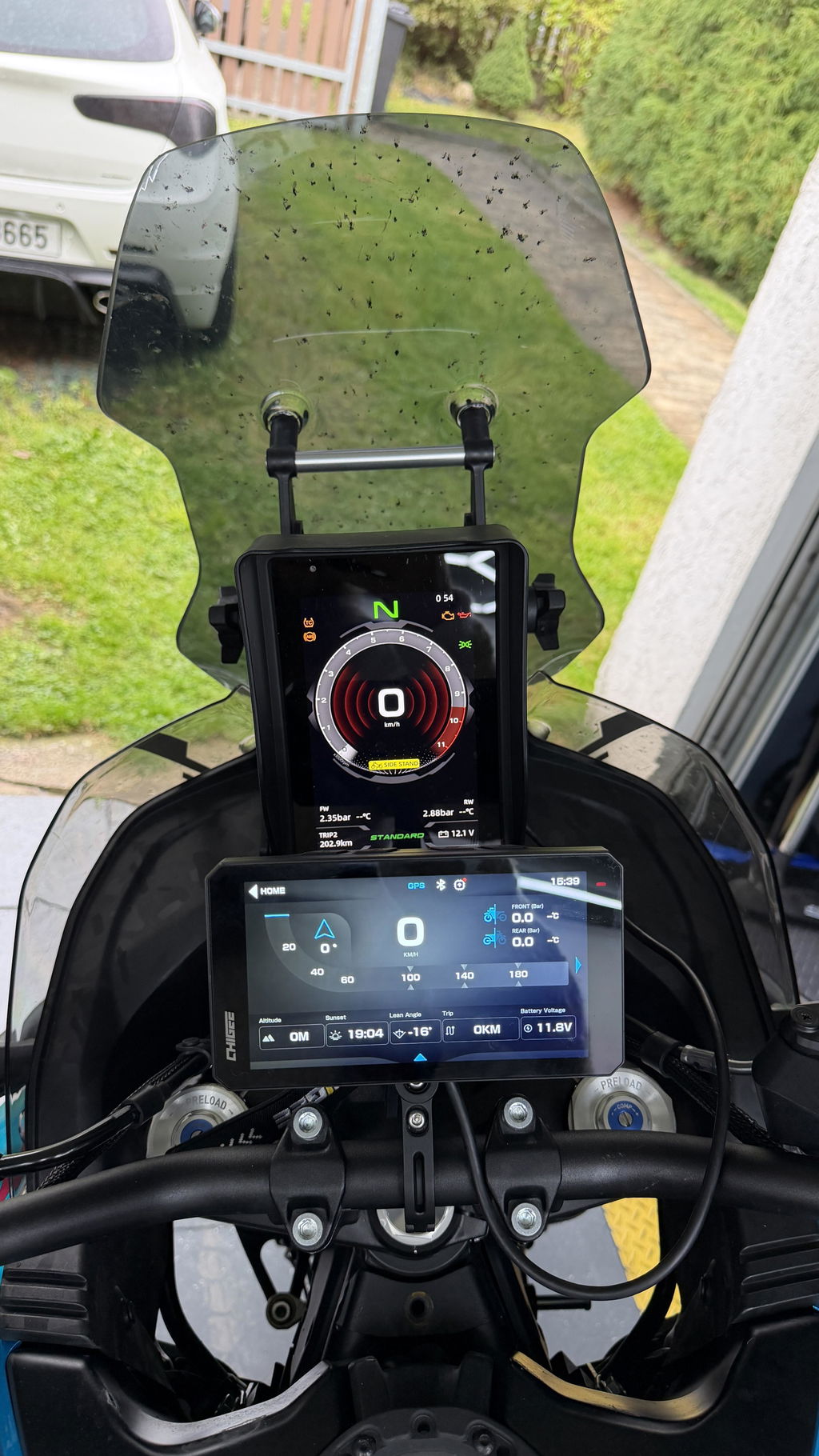
Brand: BMW
Model: R1200 RT LC
Ayuda a mejorar la seguridad en la conducción y la protección de la moto.
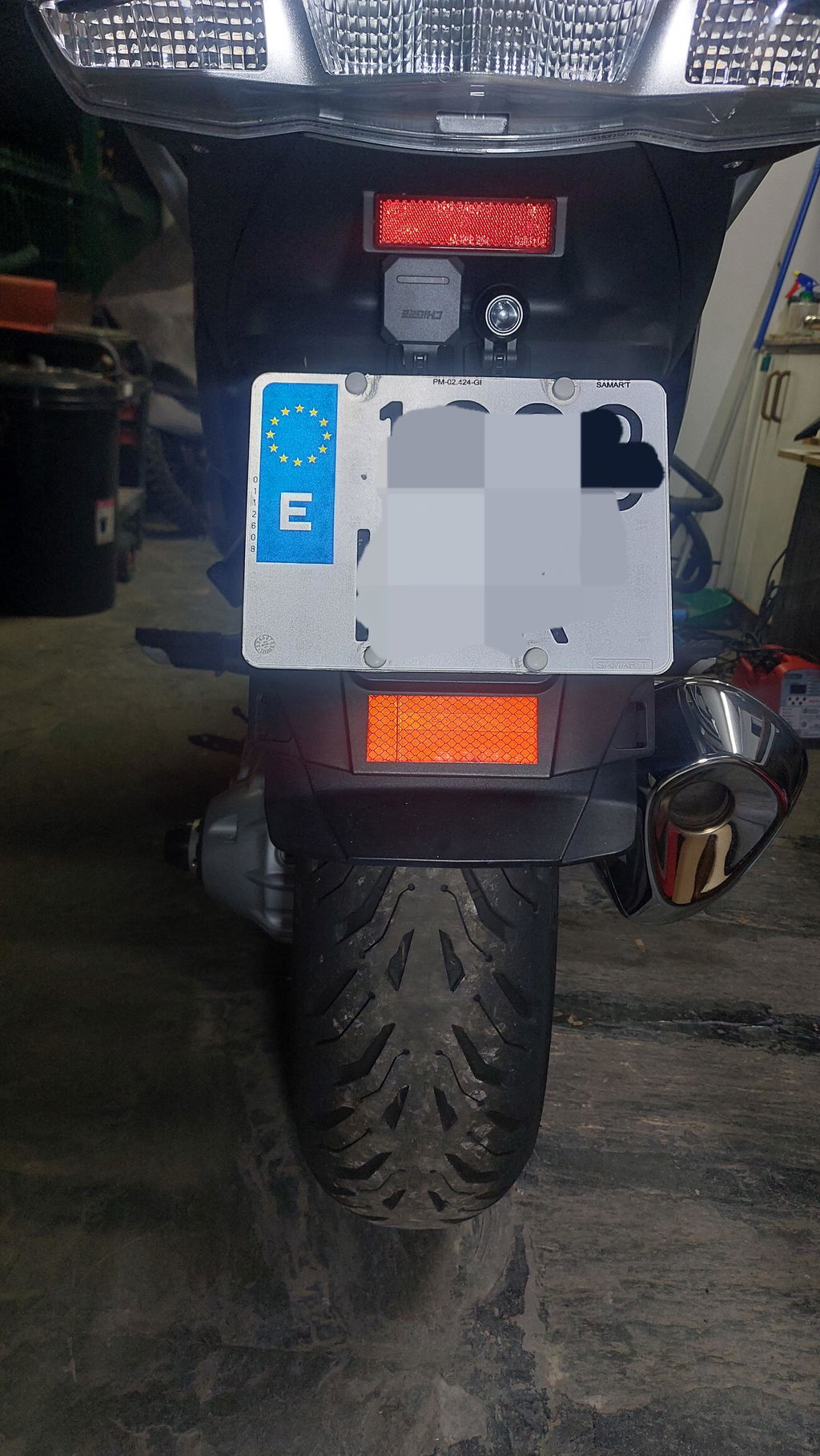
Brand: BMW
Model: BMW GS ADVENTURE 1250
Excelente producto. Muy buena calidad. Muy funcionales. Buenas imágenes